n8n AI Workflow Automation: Step-by-Step Tutorial

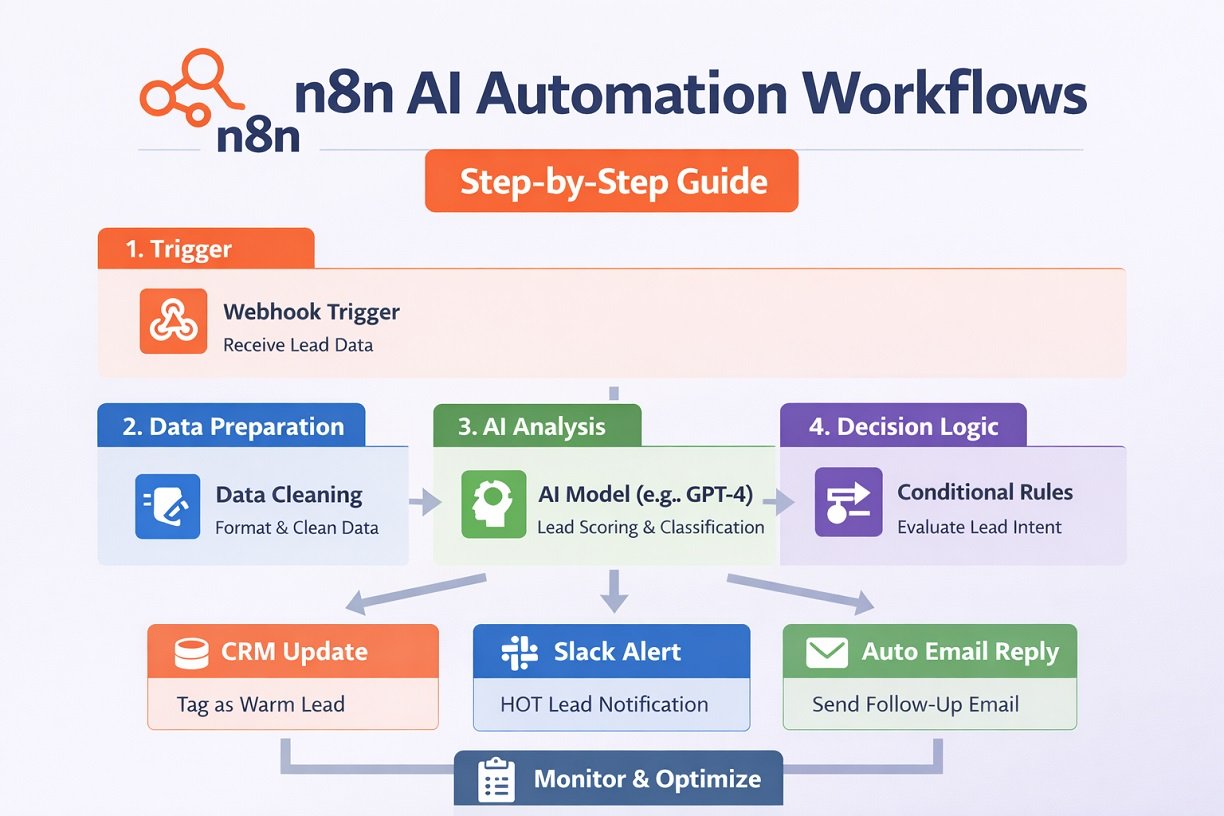
This n8n AI workflow automation tutorial shows you how to build, test, and deploy AI-powered workflows in n8n—from your first simple automation to more advanced workflows that combine AI models, APIs, databases, business tools, and conditional logic.
You’ll learn how to:
Set up n8n for AI automation
Understand the core structure of an AI workflow
Build a real AI email automation workflow step by step
Connect AI models with business applications and data
Add logic, error handling, and cost controls
Test, deploy, and optimize your workflows
Scale simple automations into more advanced AI systems
After scanning this guide, you’ll have a practical framework you can reuse for AI lead qualification, customer support, sales automation, content workflows, research, CRM automation, and other n8n AI use cases.
What Is n8n?
n8n is a visual workflow automation tool. You can learn more about the platform on the official n8n website. Think of it as a more flexible alternative to tools like Zapier or Make—but if you’re unsure which platform fits your needs, this detailed comparison of Zapier vs Make vs n8n breaks it down clearly.
But unlike many no-code tools, n8n allows:
- Custom logic
- Code nodes
- API integrations
- Self-hosting
- AI integrations
That makes it ideal for serious AI workflow automation—especially if you’re exploring real-world use cases like AI automation for real estate or scalable systems across industries.
Why Use n8n for AI Workflow Automation?
n8n combines visual workflow building, custom logic, API integrations, and AI nodes in a single platform. Compared to many no-code tools, n8n gives you complete control over workflow execution, making it ideal for advanced AI workflow automation.
- Build AI workflows visually
- Connect OpenAI, Anthropic, and other LLMs
- Add conditional logic and custom code
- Self-host for maximum flexibility
- Create scalable business automations
n8n is particularly useful when you need more control than a basic automation platform provides. You can combine AI models with APIs, databases, business applications, conditional logic, and custom code to build workflows that go beyond simple trigger-and-action automations.
n8n AI: What Can You Automate?
n8n AI automation lets you connect AI models with business apps, APIs, databases, and workflow logic to automate tasks that would otherwise require manual work. Instead of using AI as a standalone chatbot, you can build complete n8n AI workflows that receive information, analyze it, make decisions, and automatically take action.
For example, an n8n workflow can receive a new lead from a website form, use AI to evaluate the lead, update a CRM, notify your sales team, and generate a personalized follow-up email—all within one automated workflow.
Here are some of the most useful ways to use n8n AI for business automation.
AI Agents
n8n can be used to build AI agents that do more than generate text. An AI agent can analyze information, use connected tools, retrieve data, make decisions, and trigger actions based on the task you give it.
For example:
Customer question → AI agent → Knowledge base → CRM lookup → Generate response → Send reply
AI agents are particularly useful for customer support, research, sales assistance, and business processes that require multiple steps or tools.
AI Lead Qualification
You can use n8n AI workflows to automatically analyze new leads and determine how valuable or ready to buy they are.
A typical workflow could look like:
New lead → Clean lead data → AI analysis → Lead score → CRM update → Sales notification
The AI can evaluate information such as the lead’s company, industry, requirements, budget, and buying intent. High-quality leads can then be routed directly to your sales team while lower-priority leads are placed into a nurture workflow.
AI Customer Support
n8n can connect incoming customer messages with AI models and your existing support tools.
For example:
New support email → AI classification → Retrieve relevant information → Generate response → Human approval → Send reply
You can automatically classify messages by topic, urgency, sentiment, or customer type. For simple questions, the workflow can generate a response automatically. More sensitive or complex requests can be routed to a human support agent. For more advanced implementations, see our guide to AI automation for agencies.
AI Sales Automation
AI can help automate repetitive sales tasks throughout the customer journey.
An n8n sales workflow could:
Research a prospect
Enrich company information
Analyze buying intent
Generate personalized outreach
Create CRM tasks
Send follow-up reminders
Notify sales representatives about high-value opportunities
These workflows can also be combined into broader sales operations automation systems that handle lead routing, CRM updates, follow-ups, and reporting. This allows your sales team to spend less time on repetitive administrative work and more time on conversations with qualified prospects.
AI Content Workflows
n8n can connect AI models with content tools to automate parts of the content production process.
For example:
Topic → Research → AI outline → Draft → Content analysis → Social posts → CMS
You can use these workflows to generate content briefs, summarize research, create social media variations, repurpose existing content, or prepare drafts for human review.
AI should not necessarily publish everything automatically. Adding review and approval steps can help maintain quality and consistency.
AI Research
An n8n AI workflow can turn repetitive research tasks into an automated process.
For example:
Research request → Collect information → Extract key points → AI analysis → Summarize findings → Save report
The workflow can collect information from connected sources, process the data, summarize important findings, and store the results in a database, document, or spreadsheet.
This is useful for competitor research, market research, customer research, content research, and internal business reports.
AI Document Processing
Businesses often receive large amounts of unstructured information in documents, emails, forms, and other files. n8n can connect these inputs to AI models and automatically extract useful information.
For example:
Document → Extract text → AI analysis → Structured data → Database/CRM
An AI workflow could extract names, invoice numbers, dates, product information, requirements, or other fields and convert them into structured data that another application can use.
AI CRM Automation
n8n can connect AI with CRM systems to automate repetitive customer-data tasks.
For example:
New CRM record → AI analysis → Enrich customer data → Categorize → Add tags → Create follow-up task
AI can help summarize customer interactions, classify leads, identify important information, and prepare sales or support teams for the next interaction.
This can reduce manual data entry while keeping your CRM more organized.
AI Email Automation
Email is another practical use case for n8n AI automation.
A workflow can automatically:
Classify incoming emails
Detect intent
Summarize long messages
Extract important information
Generate draft responses
Route messages to the correct team
Trigger follow-up workflows
For example:
New email → AI intent detection → IF/Switch logic → Generate response or route to team → Send/save result
Adding conditional logic between the AI and the final action gives you more control over what the automation is allowed to do.
AI Data Extraction
n8n can also use AI to turn unstructured information into structured data.
For example:
Raw text → AI extraction → Structured JSON → Validate data → Save to database
This can be useful for extracting information from emails, customer requests, documents, forms, research notes, and other text-based inputs.
Instead of manually copying information into spreadsheets or business systems, the workflow can extract the required fields and pass them directly to the next step.
The Core n8n AI Automation Pattern
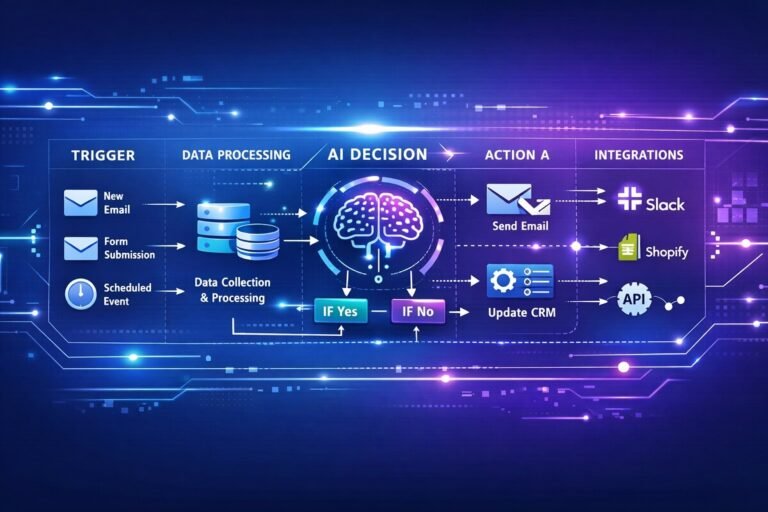
Although these use cases are different, many n8n AI workflows follow the same basic architecture:
Trigger → Data Preparation → AI Processing → Decision Logic → Action → Logging
Once you understand this pattern, you can adapt it to lead generation workflow, sales, customer support, content, research, CRM management, document processing, and many other business processes.
The key advantage of n8n is that AI does not have to operate by itself. You can combine AI models, APIs, databases, business applications, conditional logic, and human approval inside one workflow to create more useful and controllable automation systems.
10 n8n AI Workflow Examples
n8n can connect AI models with your apps, databases, APIs, and business tools to automate a wide range of tasks. Here are 10 practical n8n AI workflow examples you can use for sales, marketing, customer support, research, and business operations.
| Workflow | What it does |
|---|---|
| AI Lead Qualification | Scores incoming leads |
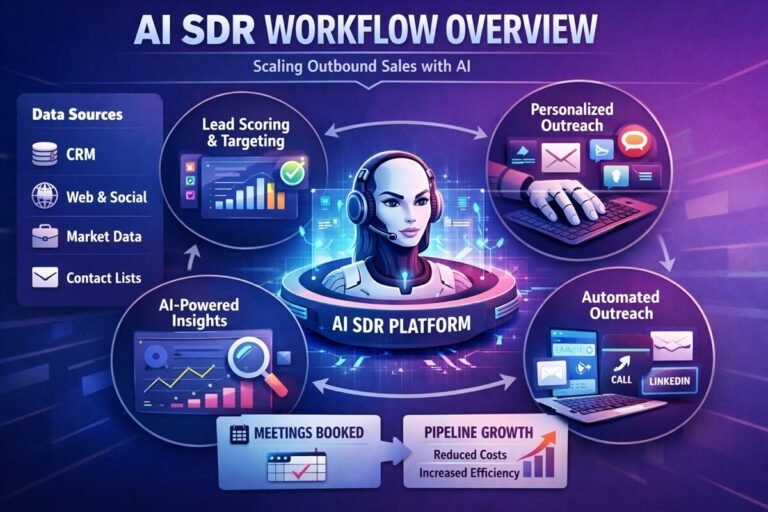
| AI SDR Workflow | Researches and qualifies prospects |
| AI Customer Support | Classifies and responds to tickets |
| AI Email Automation | Reads and responds to emails |
| AI Content Workflow | Generates and repurposes content |
| AI Research Assistant | Researches topics and summarizes findings |
| AI Document Processing | Extracts structured data |
| AI CRM Enrichment | Enriches customer records |
| AI Meeting Assistant | Converts notes into tasks |
| AI Sales Follow-Up | Generates personalized follow-ups |
How n8n AI Workflow Automation Works
n8n AI workflows typically combine several stages rather than simply connecting a trigger to an AI model. A reliable workflow usually follows this architecture:
Trigger → Data Preparation → AI Processing → Decision Logic → Action → Logging
Trigger
The trigger starts the workflow when something happens, such as a new form submission, email, CRM record, webhook request, scheduled event, or database update.
Data Preparation
The workflow cleans, formats, validates, or combines the incoming information before sending it to the AI model.
AI Processing
An AI model analyzes, classifies, summarizes, extracts, or generates information based on the workflow’s instructions.
Decision Logic
n8n logic nodes determine what should happen next. IF, Switch, Filter, and Code nodes can be used to route the workflow based on the AI output or other conditions.
Action
The workflow performs the required action, such as updating a CRM, sending an email, creating a task, notifying a team, or saving information to a database.
Logging
Important workflow results and errors can be recorded so you can monitor performance, troubleshoot failures, and improve the automation over time.
For example:
New Lead → Clean Lead Data → AI Qualification → Decision Logic → CRM Update → Sales Notification → Execution Log
Step 1: Install and Set Up n8n
You have two options:
Option 1 – Cloud (Beginner Friendly)
Use n8n Cloud for quick setup.
- Create an account
- Log in
- Start building workflows immediately
Option 2 – Self-Hosted (Advanced)
You can install via:
- Docker
- npm
- VPS
- Local machine
For production AI workflows, self-hosting gives you more control and lower long-term cost.
Step 2: Create Your First n8n AI Workflow (Real Example)
Let’s build a simple:
AI Email Auto-Responder Workflow
This type of workflow is widely used across industries—from support automation to AI tools for small businesses looking to reduce manual workload.
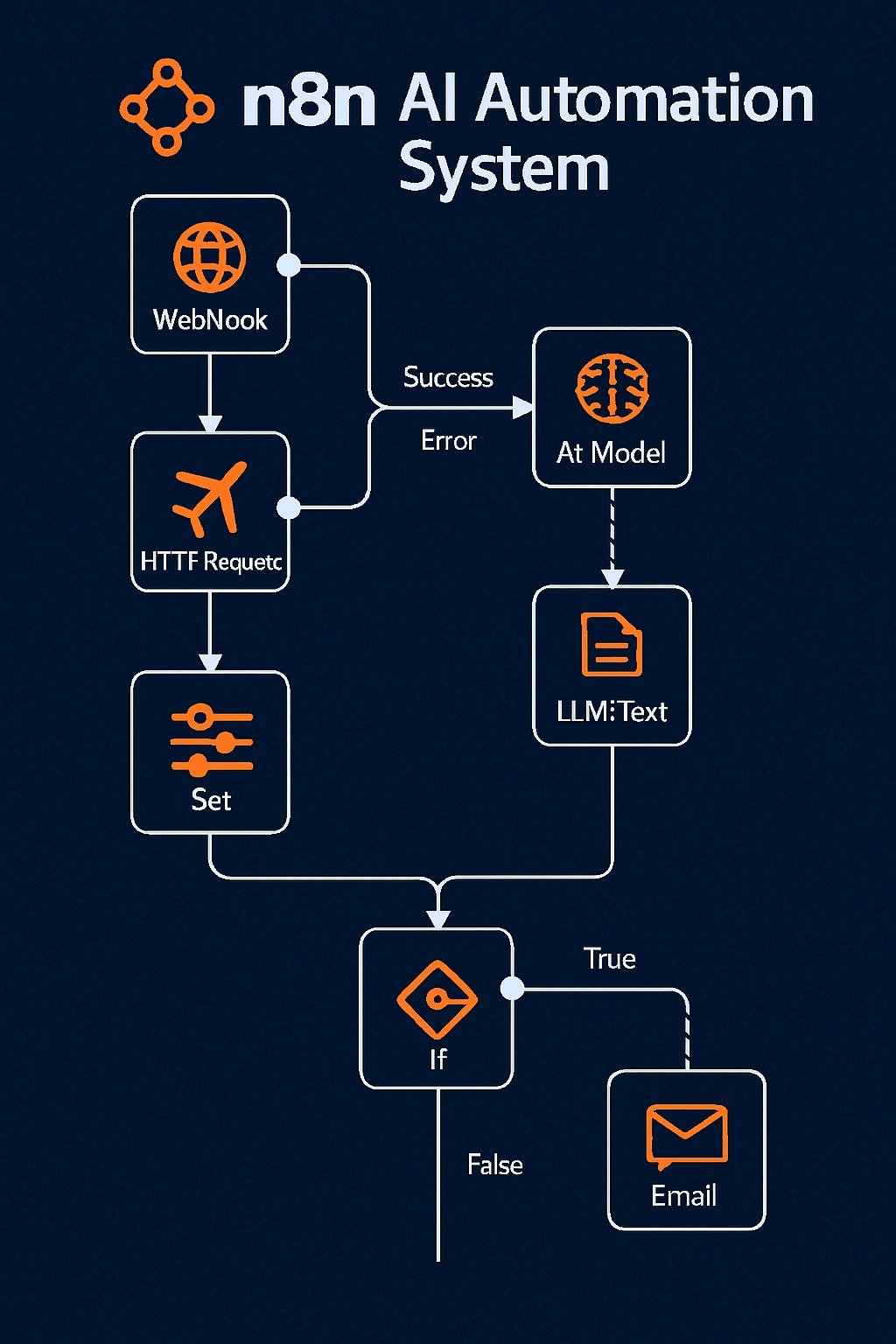
Step 2.1 – Add a Trigger
Click “Add Node”
Choose:
- Gmail Trigger
or - Webhook Trigger (for more flexibility)
This starts the automation when a new email arrives.
Step 2.2 – Add an AI Model Node
Add an AI Node.
You can connect:
Different AI models excel at different tasks. For example, content-focused workflows may benefit from comparing tools such as Notion AI vs Jasper before choosing the best model for your automation workflow.
Configure:
- API Key
- Model (e.g., GPT-4 class model)
- Prompt instructions
Example prompt:
You are a professional support assistant.
Reply clearly and politely.
Keep response under 150 words.
Pass the incoming email content into the AI node.
“Choosing the right model and tool stack is critical—especially when comparing solutions tailored for industries like legal, where tools differ significantly (see best AI workflow tools for law firms).”
Step 2.3 – Add Logic Control (Optional but Powerful)
Use:
- IF node
- Switch node
- Function node
Example:
- If email contains “refund” → send to support team
- If email is FAQ → auto-respond
This prevents bad automation.
Step 2.4 – Send the AI Response
Add:
- Gmail Send Node
or - SMTP Node
Map:
- AI output → Email body
- Sender → Original email sender
Now your workflow:
Trigger → AI → Email Send
Step 3: Test the Workflow
Before activating:
- Click Execute Workflow
- Send a test email
- Inspect each node output
Check:
- Is the prompt working?
- Is formatting correct?
- Are variables mapped properly?
Never deploy without testing. Test both normal and unexpected inputs before activating the workflow so you can identify incorrect AI responses, mapping errors, and routing problems.
Step 4: Activate and Deploy
Once stable:
- Click Activate
- Monitor execution logs
Your AI automation is now live.
Step 5: Advanced AI Workflow Patterns
Here’s where n8n becomes powerful.
1️⃣ Multi-Step AI Processing
Example:
- Extract email intent
- Classify topic
- Generate structured response
- Save to CRM
You can chain multiple AI nodes.
2️⃣ AI + Database Integration
Connect:
- Airtable
- Notion
- PostgreSQL
- Google Sheets
Use AI to:
- Enrich leads
- Score prospects
- Generate summaries
- Auto-tag entries
If you’re comparing platforms, check out this breakdown of the best AI workflow automation tools for businesses to understand where n8n stands.
3️⃣ RAG (Retrieval Augmented Generation)
Advanced setup:
- Store documents in a vector database
- Retrieve relevant context
- Feed into AI prompt
This creates accurate AI agents with business knowledge. This approach becomes even more powerful when combined with strategies for integrating AI into human workflows, ensuring AI enhances—not replaces—decision-making.
“Learn more about Retrieval‑Augmented Generation (RAG) and how it enhances AI workflows.”
Step 6: Managing and Optimizing n8n AI Workflows
Building is easy. Managing at scale is where discipline matters.
Use Version Control
- Duplicate before major edits
- Keep naming structure consistent
Example:
AI-Support-v1
AI-Support-v2
Monitor Execution Logs
Check:
- Failure rates
- Response time
- API errors
n8n provides full execution history.
Control AI Costs
AI nodes can get expensive.
Optimize by:
- Reducing token length
- Using smaller models when possible
- Filtering before sending to AI
Add Error Handling
Use:
- Error Trigger Node
- Retry logic
- Fallback responses
Never rely on AI without guardrails.
Validate AI Outputs
AI-generated results should be checked before they trigger important business actions. Use structured outputs, validation rules, IF/Switch nodes, and human approval where appropriate.
Best Practices for AI Automation in n8n
✔ Keep prompts structured
✔ Always test edge cases
✔ Separate logic from AI generation
✔ Use conditional routing
✔ Log outputs for auditing
AI is powerful. But workflow structure is what makes it reliable.
Common Mistakes to Avoid
❌ Sending raw data to AI without cleaning
❌ No fallback logic
❌ Over-automating sensitive actions
❌ Ignoring API limits
❌ Activating without testing
Final Thoughts
n8n is not just an automation tool. It is a workflow engine that becomes extremely powerful when combined with AI. The real advantage comes from:
- Structured logic
- Controlled AI usage
- Smart routing
- Continuous optimization
Start simple. Build one working AI workflow. Then expand into multi-step automation systems.
Visual Workflow Blueprint: n8n AI Automation System
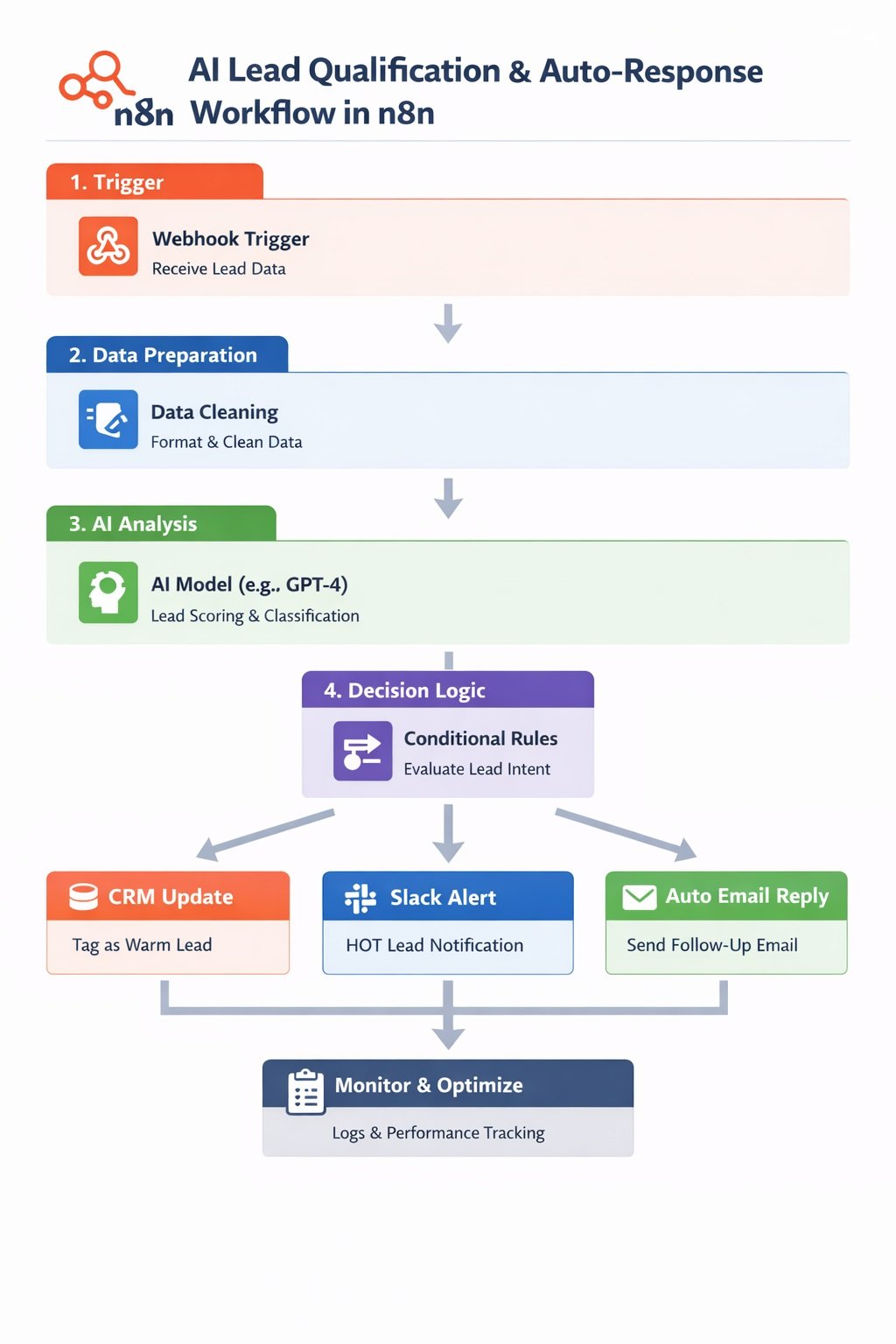
Below is a clear visual-style blueprint you can follow to build a scalable AI workflow inside n8n. This example shows a Lead Qualification + Auto-Response AI System — one of the highest-ROI automation use cases.
🧩 High-Level Architecture Diagram
[ Trigger ]
↓
[ Data Cleaning ]
↓
[ AI Analysis ]
↓
[ Conditional Logic ]
↓
┌───────────────┬───────────────┐
↓ ↓ ↓
[ CRM Update ] [ Slack Alert ] [ Auto Email ]
🧠 Visual Logic Flow Summary
Think in layers:
- Input Layer → Capture data
- Preparation Layer → Clean & structure
- AI Intelligence Layer → Analyze & classify
- Decision Layer → Route smartly
- Action Layer → Execute
That is the blueprint pattern for 90% of AI workflows.
🔧 Naming Convention Blueprint
Use structured workflow names:
AI-Lead-Qualification-v1
AI-Lead-Qualification-v2
AI-Lead-Qualification-Prod
Clear naming improves scale management.
Frequently Asked Questions (Advanced n8n AI Workflows)
What is the best way to structure prompts in n8n for consistent AI outputs?
Use a structured prompt format with clear sections such as role, task, constraints, and expected output. Avoid vague instructions and always define output format (e.g., JSON or bullet points). This reduces hallucination and improves consistency across workflow runs.
How can you prevent hallucinations in n8n AI workflows?
You can reduce hallucinations by using Retrieval-Augmented Generation (RAG), adding strict prompt constraints, limiting response scope, and validating outputs with logic nodes before taking action.
How do you handle rate limits and API failures in n8n?
Use retry logic, wait nodes, and error trigger workflows. You can also queue requests or batch them to stay within API limits. Logging failures to a database helps monitor recurring issues.
Can n8n run AI workflows in real time for high-traffic systems?
Yes, but performance depends on your setup. For high-traffic systems, use queue mode, scalable infrastructure (like Docker + Redis), and async processing to handle large volumes without delays.
What is the ideal architecture for scalable AI automation in n8n?
A scalable setup includes a trigger layer, data processing layer, AI layer, decision routing, and action layer. Adding logging, error handling, and database storage ensures reliability and long-term scalability.
Can beginners use n8n for AI workflow automation?
Yes. Beginners can use n8n Cloud to create AI workflows without coding. The visual editor makes it easy to connect AI models, APIs, and business applications.
When should you avoid using AI in an n8n workflow?
Avoid using AI for simple deterministic tasks like filtering, routing, or basic calculations. Use logic nodes instead, and reserve AI for tasks that require interpretation, generation, or classification.




5 Comments