
How to Automate CRM Updates With n8n: Step-by-Step

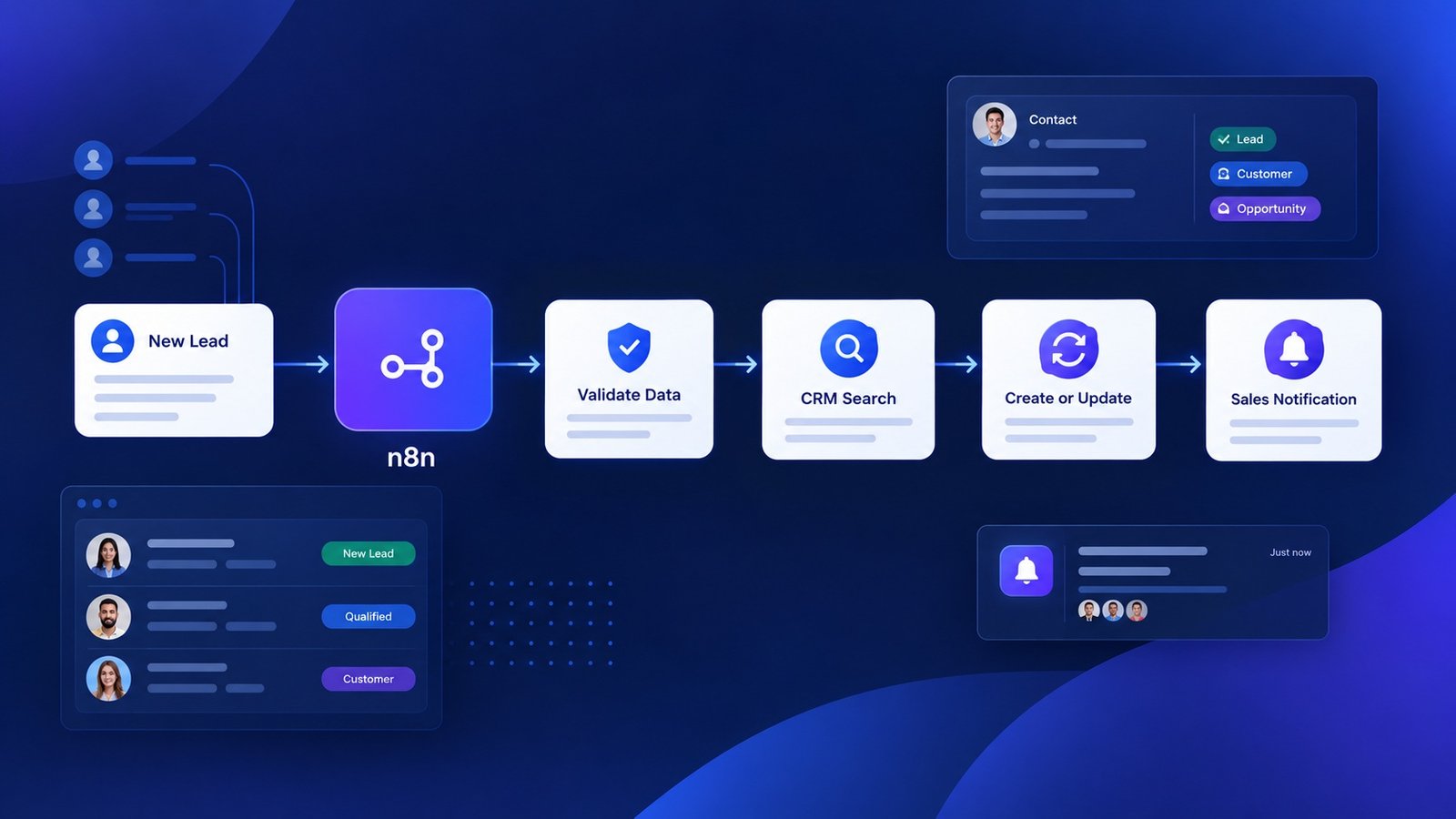
Manually updating CRM records can quickly become repetitive. A new lead arrives through a website form, spreadsheet, email campaign, or another sales tool. Someone then has to find the contact in the CRM, check whether the record already exists, enter the latest information, update the lead status, and notify the appropriate salesperson.
You can automate much of this process with n8n. An n8n CRM workflow can receive information from another application, validate and organize the data, search your CRM for an existing record, and then create or update the contact automatically.
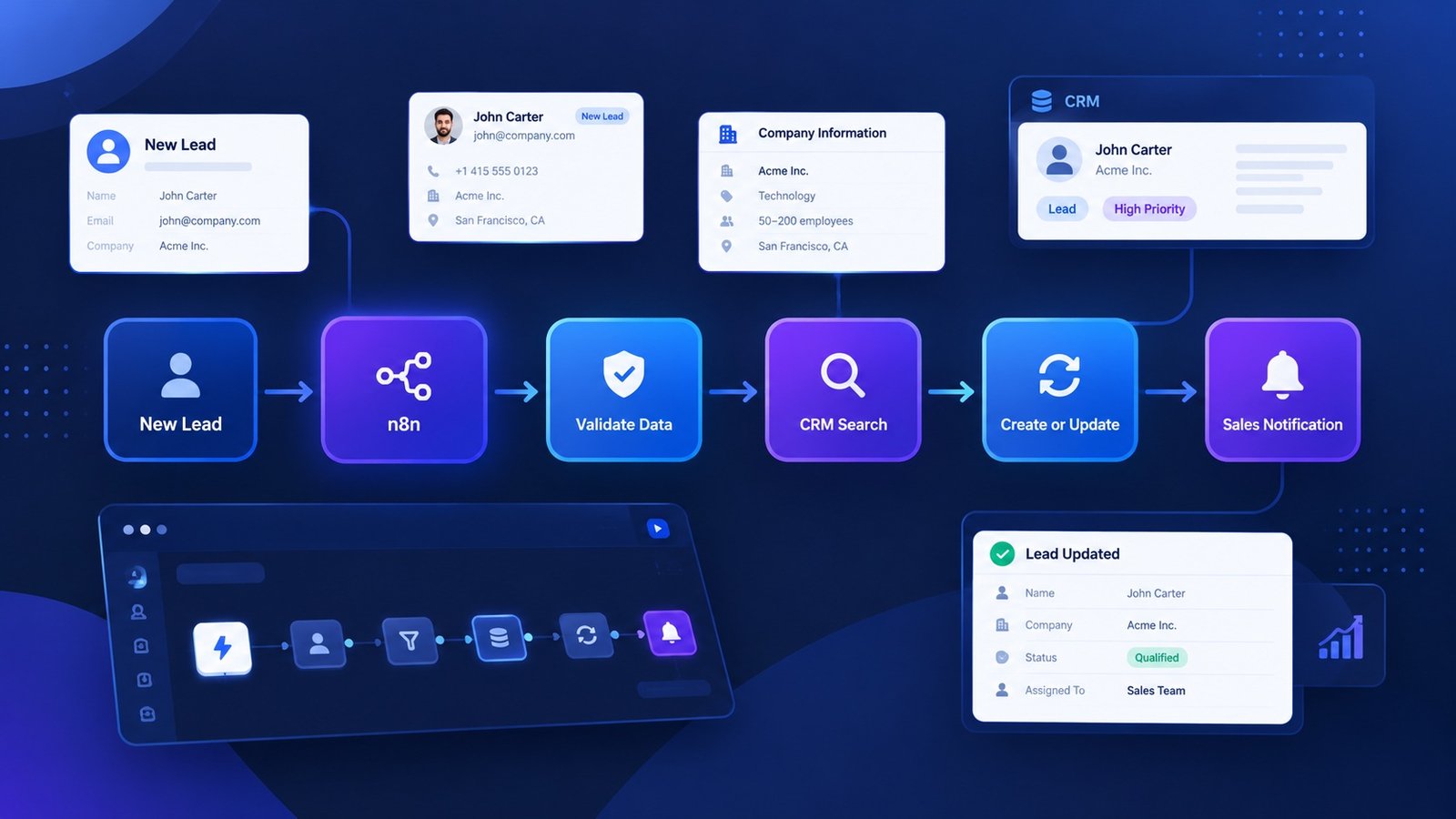
A general workflow looks like this:
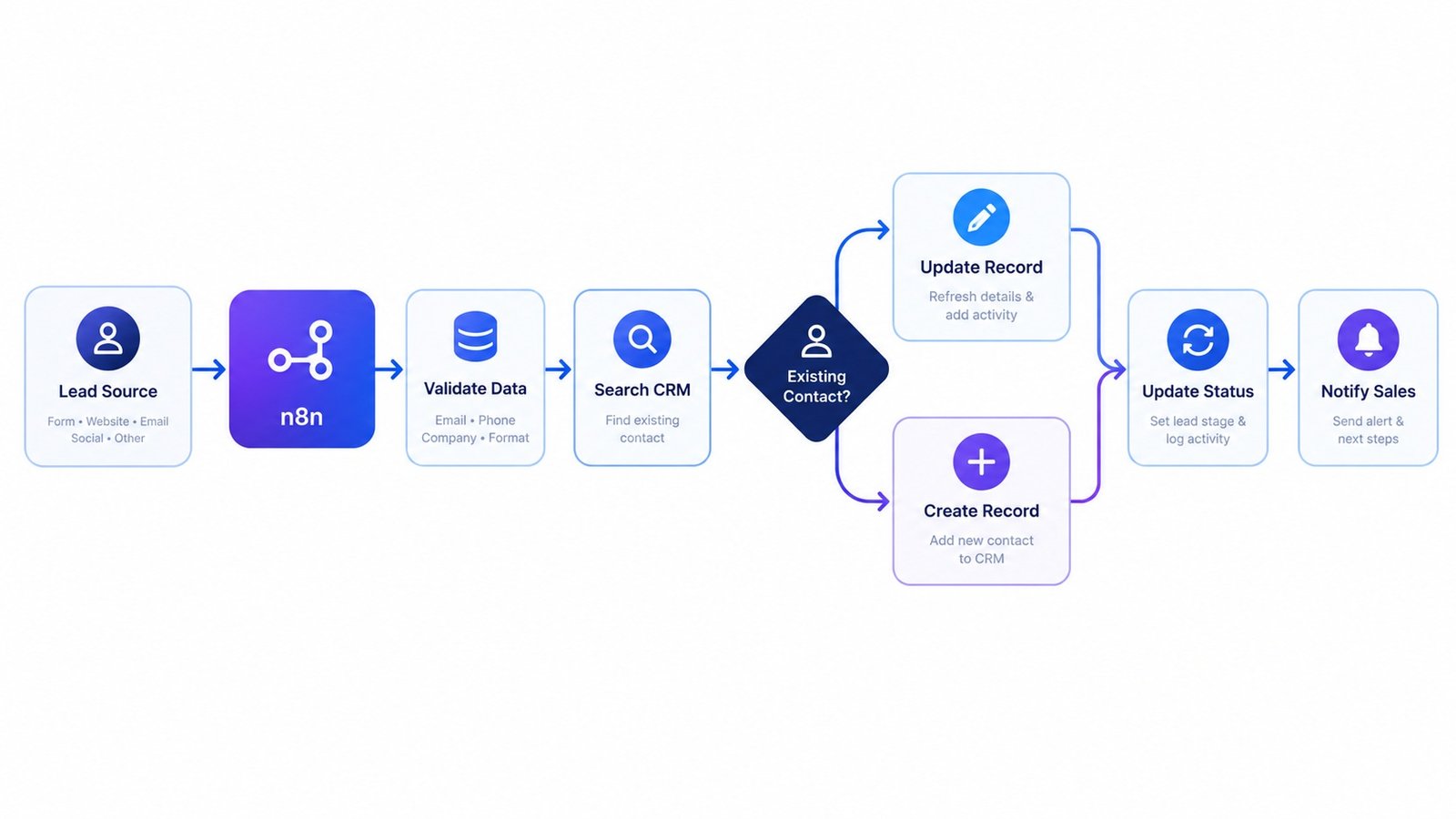
Lead Source → n8n → Validate Data → Search CRM → Create or Update Contact → Update Status → Notify Sales
In this guide, you’ll learn how to build this type of CRM automation step by step, where AI can help, how to prevent duplicate records, and how to make the workflow more reliable in production.
Table of Contents
What Is CRM Automation With n8n?
CRM automation with n8n means using an n8n workflow to move, process, and update customer or lead information automatically between your CRM and other business applications. Instead of manually copying information between systems, n8n can connect the different steps into one workflow.
For example:
Website Form
↓
n8n Webhook
↓
Validate Lead Information
↓
Search CRM
↓
Existing Contact?
↙︎ ↘︎
Yes No
↓ ↓
Update Record Create Record
↘︎ ↙︎
Update Lead Status
↓
Notify Sales Team
This approach can be used with different CRM platforms and data sources. The exact nodes and fields will depend on the CRM you’re connecting.
Why Automate CRM Updates?
Manual CRM data entry creates several problems as lead volume increases.
1. Reduce repetitive data entry
Sales and operations teams don’t need to manually copy the same information between systems every time a lead arrives.
2. Keep records current
Automated workflows can update fields whenever new information becomes available.
3. Reduce duplicate contacts
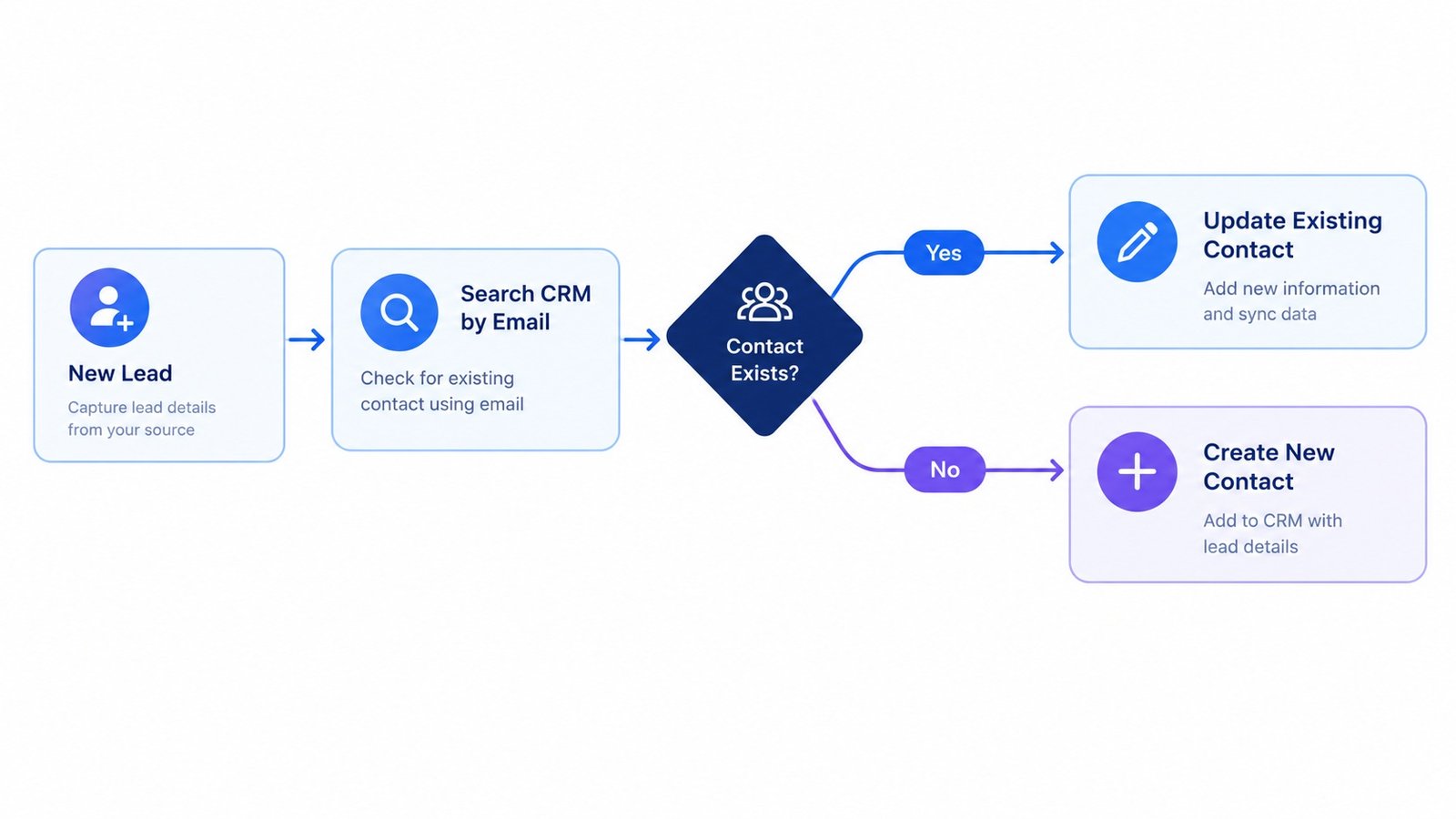
Instead of creating a new contact every time a lead enters your system, n8n can search for an existing record first.
4. Standardize CRM data
You can normalize names, phone numbers, lead sources, statuses, and other fields before information reaches the CRM.
5. Improve lead routing
CRM updates can trigger additional actions such as creating sales tasks, sending notifications, or starting follow-up workflows.
6. Connect multiple business systems
Your CRM doesn’t have to operate in isolation. n8n can connect it with forms, spreadsheets, email, databases, enrichment services, and other applications.
What CRM Updates Can You Automate With n8n?
There are many CRM operations that can be automated.
| CRM Task | Example n8n Automation |
|---|---|
| New lead | Create a CRM contact |
| Existing lead | Update the existing record |
| Form submission | Add or update contact information |
| Lead qualification | Change lead status |
| Lead enrichment | Add company or contact information |
| New customer | Update lifecycle stage |
| Lead source | Automatically populate source |
| Sales handoff | Create a sales task |
| Follow-up | Trigger an email or notification |
| Duplicate prevention | Search before creating |
| Inactive lead | Change status or route to nurture |
| New activity | Add information to the CRM record |
The important point is that CRM automation doesn’t have to mean completely replacing human involvement. A better approach is often to automate predictable tasks while keeping people involved when a decision requires judgment.
How an n8n CRM Update Workflow Works
Before building the workflow, it helps to understand the logic. Suppose someone submits a lead through your website. The workflow could process the submission like this:
Step 1: Receive the lead
n8n receives the information through a webhook or another trigger.
Step 2: Validate the information
Check whether required fields such as email are present and valid.
Step 3: Normalize the data
Convert the incoming information into a consistent structure.
Step 4: Search the CRM
Use a unique identifier, such as an email address, to determine whether the contact already exists.
Step 5: Decide what to do
If the contact exists, update the record.
If the contact doesn’t exist, create a new record.
Step 6: Update additional fields
You can update lead source, status, score, company information, or other fields.
Step 7: Trigger the next action
The workflow can notify sales, create a task, start a follow-up sequence, or simply log the result. This create-or-update approach is one of the most important concepts in reliable CRM automation.
How to Automate CRM Updates With n8n
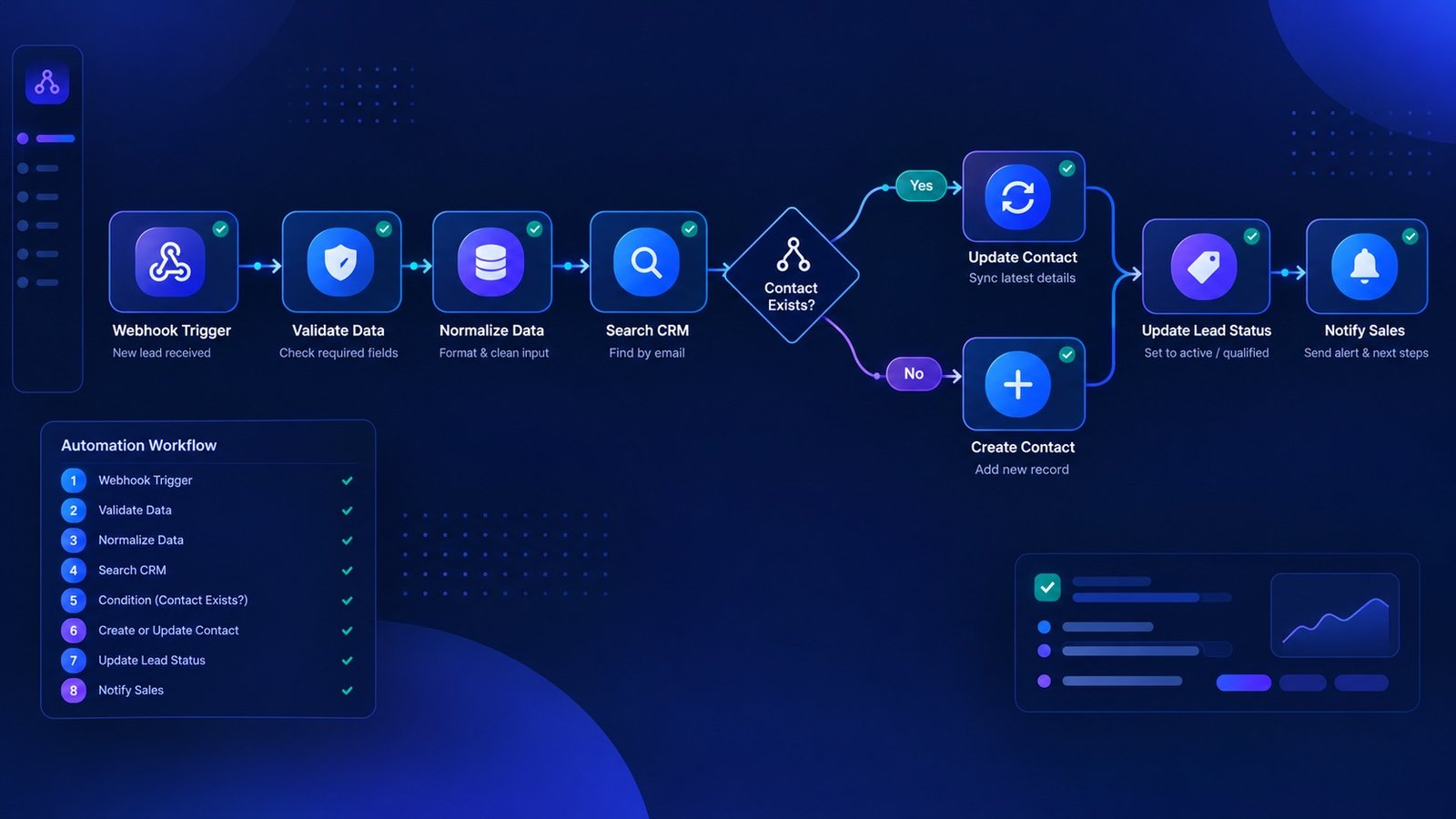
Now let’s walk through a practical workflow.
Step 1: Choose Your CRM
First, decide which CRM will receive the information. Your workflow architecture can work with different CRM platforms, although the exact n8n node configuration will vary.
Common possibilities include:
- HubSpot
- Salesforce
- Pipedrive
- Airtable
- Other CRM platforms with API access
You don’t need to build the entire workflow around one CRM if your goal is to create a reusable automation architecture. The core logic remains similar:
Receive → Validate → Search → Create/Update → Route
Step 2: Choose Your Trigger
The trigger determines when the CRM workflow starts. For example, you could trigger the workflow when:
- A website form is submitted
- A new row is added to Google Sheets
- A webhook receives data
- A new email arrives
- A customer is added to another system
- A scheduled process runs
- Another workflow sends information
For a website lead-generation workflow, a webhook is a straightforward option. The workflow might begin:
Website Form → Webhook
The webhook receives information such as:
First Name: Sarah
Last Name: Jones
Email: sarah@example.com
Company: Example Corp
Phone: +1 555 123 4567
Lead Source: Website
Step 3: Validate the Incoming Data
Don’t immediately send raw information to your CRM. First, validate the data. For example, check:
- Is an email address present?
- Is the email formatted correctly?
- Is the name available?
- Are required CRM fields present?
- Does the lead contain enough information to process?
You can use n8n’s workflow logic to determine what happens when information is missing.
For example:
Email exists?
→ Yes: Continue
→ No: Send to error or review path
This prevents incomplete records from entering your CRM.
Step 4: Normalize the Data
Different applications often use different field names. One application might use:
firstName
while your CRM expects:
firstname
Another system might use:
company_name
while your CRM expects:
company.
Create a consistent internal structure before updating the CRM.
For example:
first_name
last_name
email
phone
company
job_title
lead_source
lead_status
This makes the workflow easier to maintain when you add additional data sources later.
Step 5: Search the CRM Before Creating a Contact
This is one of the most important steps. A simple but risky workflow would be:
New Lead → Create Contact
The problem is that the same person could submit another form later. Instead, use:
New Lead → Search CRM → Does Contact Exist?
For many lead workflows, email is a useful identifier for this check. The logic becomes:
Contact found?
Yes
→ Update existing CRM record
No
→ Create new CRM record. This simple check can significantly reduce duplicate CRM records.
Step 6: Update the Existing CRM Record
If the contact already exists, update only the information that should change. For example:
Lead Source: Website
Status: New Lead
Company: Example Corp
Last Activity: 2026-10-03
Be careful about overwriting valuable existing information. For example, if the CRM already contains a manually verified phone number, you may not want a low-confidence incoming value to replace it automatically. A production workflow should define which fields can be overwritten and which should be protected.
Step 7: Create a New Contact When No Match Exists
If the CRM search returns no matching record, the workflow can create a new contact.
For example:
First Name: Sarah
Last Name: Jones
Email: sarah@example.com
Company: Example Corp
Source: Website
Status: New
You can also map additional fields depending on your CRM structure.
Step 8: Update the Lead Status
After creating or updating the CRM record, you can apply business rules. For example:
New Lead
→ Status = New
Qualified Lead
→ Status = Qualified
High-Priority Lead
→ Status = Hot
Not Ready
→ Status = Nurture
These rules can be completely deterministic. You don’t necessarily need AI for basic CRM automation.
Adding Lead Qualification to the CRM Workflow
CRM updates become more useful when they are connected to lead qualification.
For example:
New Lead
↓
Validate
↓
Calculate Lead Score
↓
Search CRM
↓
Create or Update Contact
↓
Set Status
↓
Route Lead
A rules-based scoring system could consider:
- Company size
- Job title
- Industry
- Budget
- Purchase timeline
- Requested service
- Engagement level
For example:
Score: 85
Status: Qualified
Priority: High
The workflow could then update the CRM and create a sales task. If you want a dedicated n8n workflow for this type of process, see our guide to n8n AI lead qualification workflows.
Where AI Fits Into CRM Automation
AI can add another layer to an n8n CRM workflow, but it doesn’t need to control every step. For predictable operations, standard workflow logic is often easier to understand and maintain. For example:
Validate email → Standard automation
Search CRM → Standard automation
Create/update contact → Standard automation
But AI can be useful for tasks that require interpretation.
For example:
- Summarizing a lead
- Classifying an inquiry
- Extracting information from an email
- Determining potential intent
- Categorizing a lead
- Generating a company summary
- Suggesting a next action
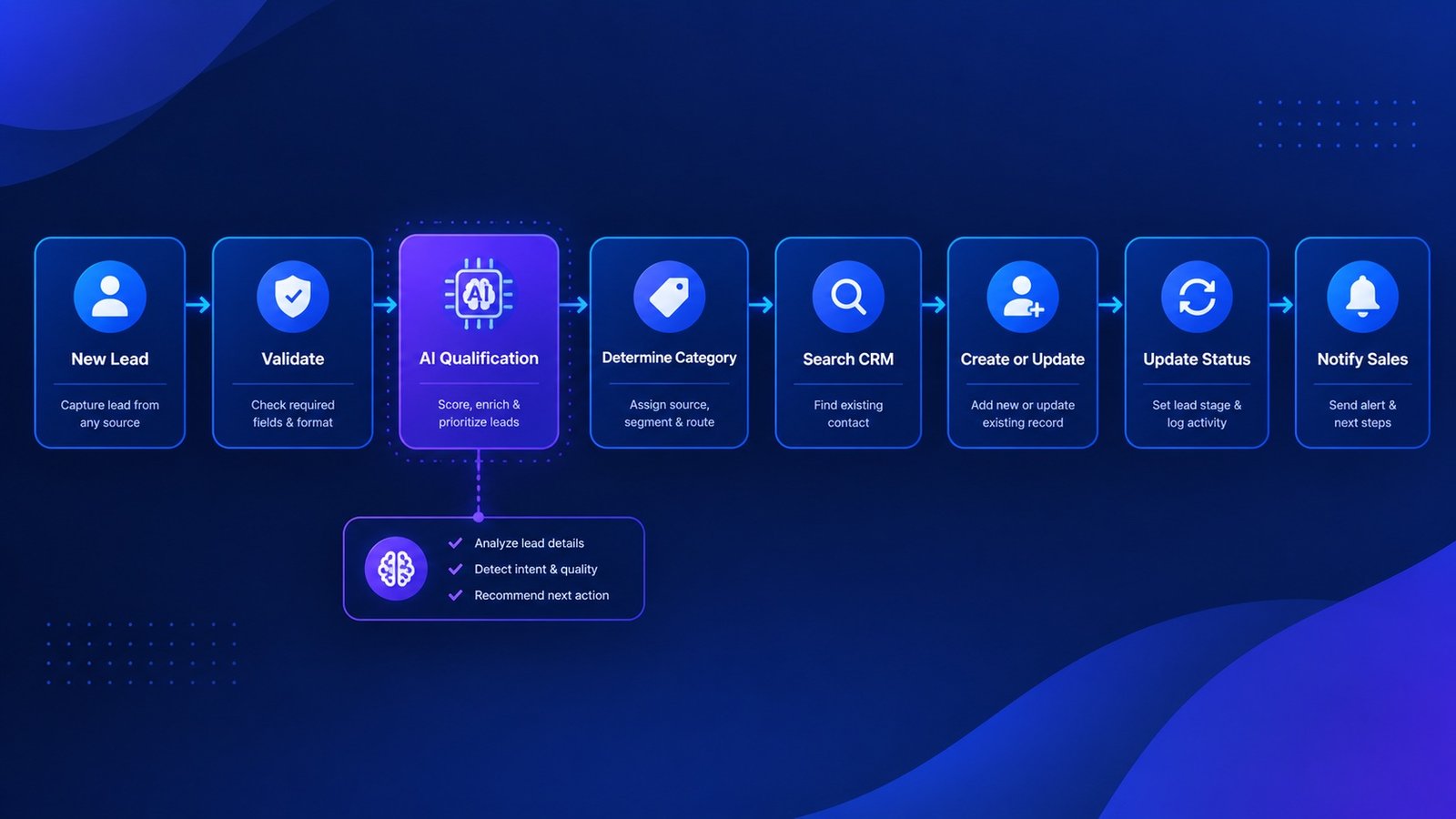
An AI-enhanced workflow could look like:
New Lead
↓
Validate
↓
AI Qualification
↓
Determine Category
↓
Search CRM
↓
Create or Update
↓
Update Status
↓
Notify Sales
This hybrid approach keeps deterministic CRM operations separate from tasks where AI interpretation adds value.
CRM Automation Without AI
You don’t need a paid AI API to build useful CRM automation.
For example:
Google Sheets
↓
↓
Validate Email
↓
Search CRM
↓
Existing Contact?
↓
Update or Create
This workflow can automatically synchronize information without requiring an AI model. This is particularly useful when the main problem is repetitive data movement rather than decision-making.
Example: Automating CRM Updates From a Website Form
Let’s put the pieces together. Imagine a company receives leads through a website form. The form collects:
- Name
- Company
- Phone
- Service requested
The n8n workflow receives the submission.
Workflow
Webhook
↓
Validate
↓
Normalize Data
↓
Search CRM by Email
↓
IF Contact Exists
↙︎ ↘︎
Yes No
↓ ↓
Update Contact Create Contact
↘︎ ↙︎
Set Lead Status
↓
Create Sales Task
↓
Notify Sales Team
This eliminates several repetitive manual steps. It also creates a consistent process for every new lead.
Example: Lead Enrichment + CRM Update
You can take the workflow one step further by adding enrichment. For example:
New Lead
↓
Validate
↓
Search Enrichment Source
↓
Add Company Information
↓
Search CRM
↓
Create or Update
↓
Set Lead Status
↓
Notify Sales
Potential enrichment fields might include:
- Company name
- Website
- Industry
- Company size
- Job title
- Location
The exact fields depend on the enrichment provider and CRM. For businesses that want a ready-made workflow covering this type of process, our Lead Enrichment & CRM Update Kit provides a starting point that can be customized for a specific business process.
Common n8n CRM Automation Mistakes
Automating CRM updates is straightforward in principle, but there are several mistakes worth avoiding.
1. Creating records without checking for duplicates
Always consider whether the contact already exists before creating a new record.
2. Sending unvalidated data to the CRM
Validate required fields before performing CRM operations.
3. Overwriting valuable information
Don’t automatically replace existing CRM information unless the workflow has a clear rule for doing so.
4. Using AI for simple tasks
If a task can be handled with a simple condition or field mapping, AI may add unnecessary complexity.
5. Ignoring errors
API failures, authentication problems, invalid fields, and rate limits can all cause workflow executions to fail. Your workflow should have an appropriate error-handling strategy.
6. Automating without testing
Test the workflow with:
- A brand-new contact
- An existing contact
- Missing information
- Invalid email addresses
- Duplicate submissions
- Unexpected field values
7. Forgetting to log important actions
For important CRM workflows, it can be useful to record what happened and when.
How to Handle CRM Automation Errors
A reliable workflow should have a plan for failures. For example:
CRM Update Fails
↓
Capture Error
↓
Log Execution
↓
Notify Administrator
↓
Retry or Review Manually
Potential failure scenarios include:
- CRM API unavailable
- Invalid authentication
- Missing required field
- Invalid field value
- Duplicate conflict
- Rate limit
- External service failure
Not every error should automatically trigger a retry. For some situations, human review is safer.
How to Make an n8n CRM Workflow Production-Ready
Before relying on an automated CRM workflow, use a checklist.
CRM automation checklist
- Validate incoming data
- Normalize field names
- Check for existing records
- Define unique identifiers
- Protect important CRM fields
- Add conditional logic
- Handle API errors
- Test duplicate scenarios
- Log important results
- Monitor failed executions
- Document field mappings
- Keep human review where necessary
A workflow that works once is not necessarily production-ready. The goal is to create a process that continues behaving predictably when the input changes or something goes wrong.
n8n CRM Automation Use Cases
Once you understand the basic create-or-update pattern, you can adapt it to many business processes.
Website Lead → CRM
Automatically create or update contacts after form submissions.
Google Sheets → CRM
Synchronize rows with CRM records.
Email → CRM
Extract relevant information from incoming emails and update customer records.
Lead Enrichment → CRM
Enrich lead information before creating or updating a CRM contact.
Lead Qualification → CRM
Score leads and automatically update their CRM status.
CRM → Sales Notification
Notify the sales team when an important CRM condition is met.
CRM → Follow-Up Workflow
Trigger follow-up actions when a lead reaches a specific stage.
Customer Support → CRM
Update customer records after support interactions.
Should You Automate CRM Updates With n8n?
If your team repeatedly moves information between a CRM and other business applications, an n8n workflow can turn those repetitive steps into a structured automation.
The most useful architecture is often simple:
Trigger → Validate → Normalize → Search → Create/Update → Route → Log
You can then add more advanced functionality such as lead enrichment, scoring, AI classification, notifications, and follow-up automation as the process grows.
The key is not to automate every decision.
Instead, automate the predictable work and keep humans involved where judgment is still important.
FAQs About CRM Updates With n8n
Can n8n automatically update a CRM?
Yes. An n8n workflow can receive information from another application, process the data, search for an existing CRM record, and then create or update the appropriate record.
Can n8n prevent duplicate CRM contacts?
Yes. A workflow can search for an existing record using a unique identifier such as an email address before deciding whether to create a new contact.
Do I need AI to automate CRM updates with n8n?
No. Validation, field mapping, CRM searches, conditional logic, and create-or-update operations can all be handled with standard workflow automation.
Can n8n enrich CRM records?
Yes. n8n can connect to external data sources and enrichment services and then use the returned information to update CRM records.
Can n8n automatically score leads?
Yes. You can create rules-based lead scoring or add an AI model when the scoring process requires interpretation.
Can n8n update existing CRM contacts?
Yes. A workflow can search for a matching contact and then update selected fields instead of creating a duplicate record.
Can n8n automate CRM workflows without coding?
n8n provides a visual workflow builder, so many CRM automation workflows can be created without writing a traditional application from scratch. More advanced workflows may still require expressions, API configuration, or code.
What is the best way to build a reliable CRM automation?
Start with a simple workflow: validate the incoming information, search for an existing record, create or update the record, handle errors, and test different scenarios before adding more advanced automation.
Ready to Build Your CRM Automation?
You don’t have to build every CRM workflow from scratch.
If your process involves lead enrichment, qualification, and CRM updates, you can start with a ready-made n8n workflow and customize it around your own CRM fields and sales process.
Explore the Lead Enrichment & CRM Update Kit →
If you’re new to n8n, you can also learn more about building AI-powered workflows in our n8n AI workflow automation tutorial.
And if you want to expand this workflow into a complete lead qualification process, see our guide to n8n AI lead qualification.