n8n API Automation: 7 Powerful Ways to Connect Any API

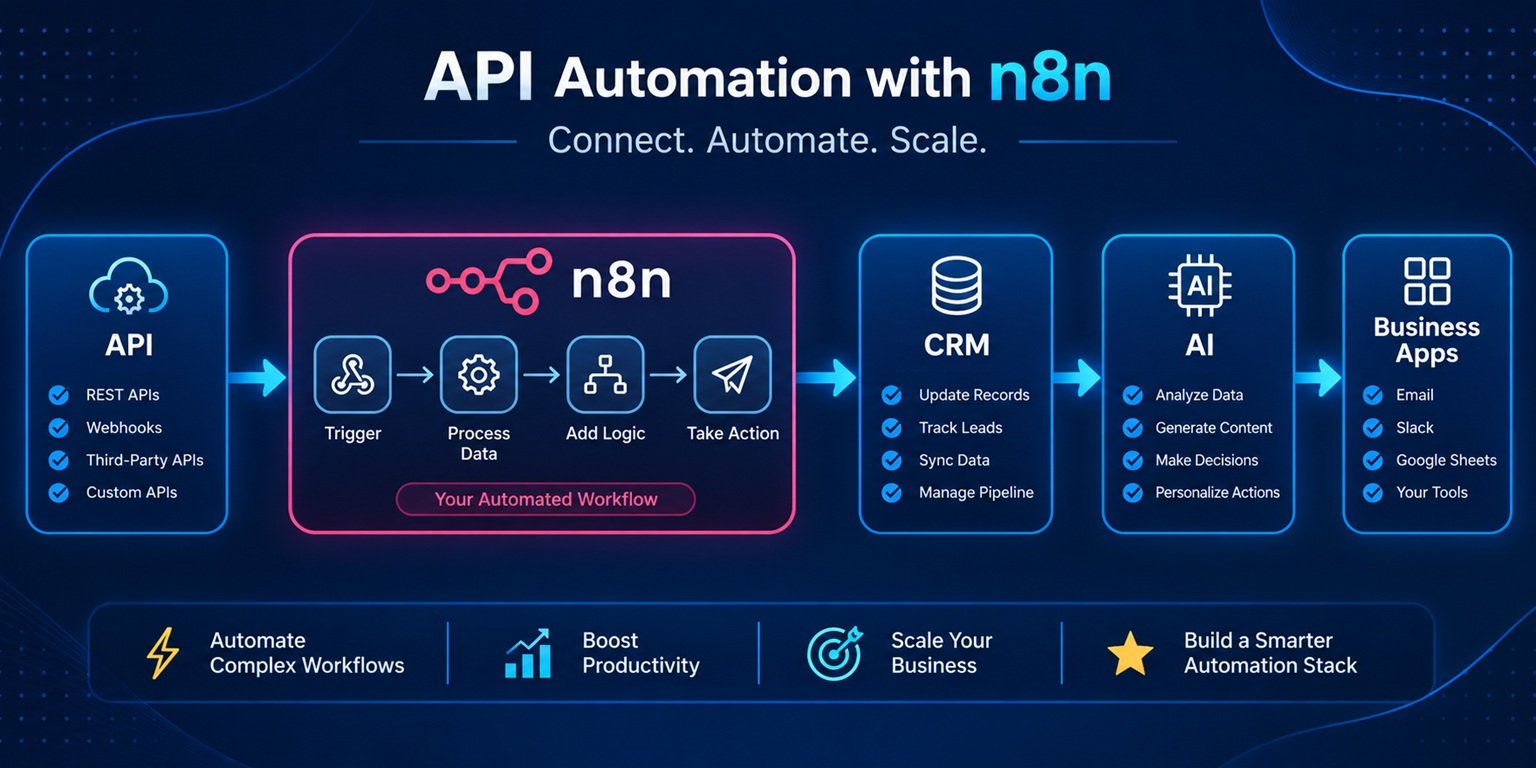
n8n API automation lets you connect applications, databases, SaaS platforms, internal systems, and custom services—even when n8n doesn’t have a dedicated integration for them.
The core of this process is the HTTP Request node, which can make REST API calls using methods such as GET, POST, PUT, PATCH, and DELETE. n8n also supports authentication, dynamic expressions, pagination, batching, and other features needed to build production-ready API workflows.
That makes n8n particularly useful when a business needs to automate a process that crosses several systems.
For example:
Website form → n8n → API → CRM → AI analysis → Slack → follow-up email
Instead of manually moving information between applications, n8n can retrieve data from one system, transform it, send it to another API, evaluate the response, and continue the workflow automatically.
This guide explains how n8n API automation works, how to connect an API step by step, how authentication works, how to handle pagination and rate limits, and how to build reliable API-driven business workflows.
Ready to Build Your Own API Automations?
You can use n8n to connect external APIs, process data, synchronize CRM records, and automate business operations without manually handling every integration. If you want a managed environment without maintaining your own automation server, explore n8n Cloud and start building your first API-powered workflow.
Table of Contents
What Is n8n API Automation?
n8n API automation is the process of using n8n to automatically communicate with external applications through their APIs. An API, or Application Programming Interface, provides a structured way for one application to request information from or send information to another application.
In n8n, the HTTP Request node is the primary tool for communicating with REST APIs. n8n’s documentation describes it as one of its most versatile nodes because it can query data from applications and services that expose REST APIs.
A simple API automation might look like this:
Trigger
   ↓
HTTP Request
   ↓
Process Response
   ↓
IF / Switch
   ↓
CRM / Database / Email
A more advanced workflow could look like:
Website Form
      ↓
Validate Lead
      ↓
HTTP Request → Enrichment API
      ↓
AI Analysis
      ↓
Lead Qualification
      ↓
CRM API
      ↓
Slack Notification
      ↓
Follow-Up Email
The important idea is that n8n becomes the orchestration layer between different systems. This orchestration approach is also the foundation of modern AI workflows, where multiple applications, automation steps, and AI services work together as a single business process.
Why Use n8n for API Automation?
Many businesses eventually encounter an integration that isn’t available as a simple native connector. Many businesses eventually encounter an integration that isn’t available as a simple native connector. This is where understanding broader AI workflow automation tools for businesses can help you choose the right automation approach.
A platform might have:
- A REST API
- API documentation
- API keys
- OAuth
- Webhooks
- JSON responses
- Custom endpoints
But no dedicated n8n node for the exact operation you need.
That’s where API automation becomes especially useful. If you’re new to n8n, our n8n AI workflow automation tutorial provides a broader introduction to building automated workflows.
If a service exposes an API, you can often connect it to n8n using the HTTP Request node. n8n also allows you to use predefined credentials when supported or generic authentication methods for services that don’t have a dedicated integration.
This means you aren’t limited to the applications that have a visible “n8n integration.”
How n8n API Automation Works
At a basic level, an API workflow has five components:
- Trigger
- Request
- Authentication
- Response
- Action
For example:
Webhook
   ↓
HTTP Request
   ↓
API Response
   ↓
IF
   ↓
CRM
1. Trigger
The workflow starts because something happens.
Common triggers include:
- Webhook
- Form submission
- Schedule
- New email
- New CRM record
- Database event
- Manual execution
2. Request
n8n sends an HTTP request to an API endpoint.
3. Authentication
The API verifies that the request is authorized.
4. Response
The API returns information, often as JSON.
5. Action
n8n uses the response to continue the workflow.
For example:
New lead
   ↓
API enrichment
   ↓
Company information
   ↓
Qualification
   ↓
CRM update
n8n HTTP Request Node Explained
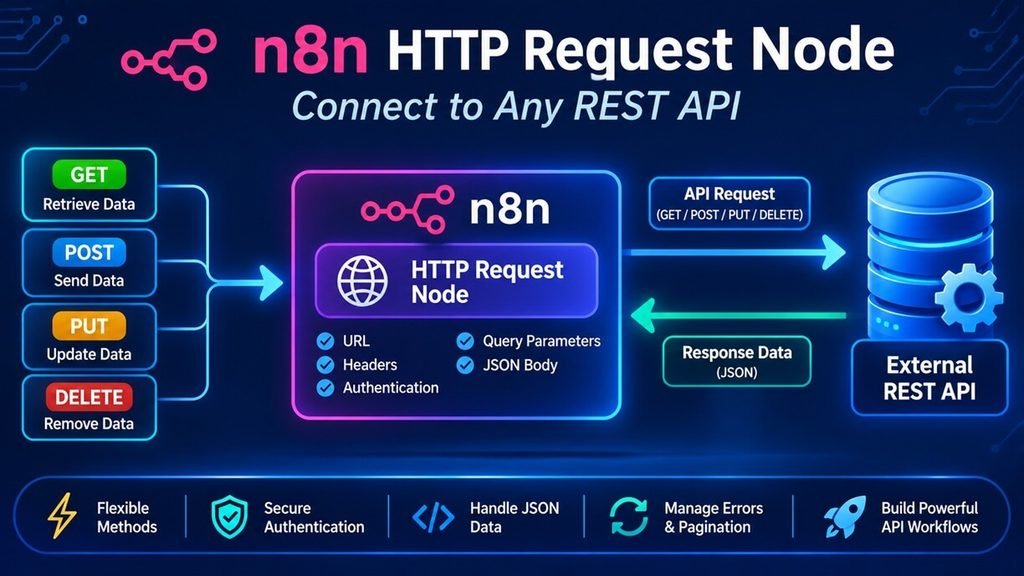
The HTTP Request node is the main building block for n8n API integrations.
It supports HTTP methods including:
- GET
- POST
- PUT
- PATCH
- DELETE
- HEAD
- OPTIONS
You specify the API endpoint, authentication, parameters, headers, body, and response handling according to the API’s requirements.
The basic configuration looks like:
Method: GET
URL: https://api.example.com/customers
Authentication: API Key / OAuth2 / Bearer Token
You can also import a cURL command from an API’s documentation, which can save time when the API provider gives you a ready-made request example.
Step-by-Step: How to Connect an API to n8n
Let’s walk through the general process.
Step 1: Find the API Documentation
Before opening n8n, find the API documentation for the service you want to connect.
Look for:
- Base URL
- Endpoint
- HTTP method
- Authentication method
- Required headers
- Query parameters
- Request body
- Response format
- Rate limits
- Pagination rules
- Error responses
For example, an API might document:
GET https://api.example.com/v1/customerswith:
Authorization: Bearer YOUR_TOKENand return:
{
  "customers": [
    {
      "id": "123",
      "name": "Example Company",
      "email": "hello@example.com"
    }
  ]
}
You need to understand the API’s requirements before configuring the n8n node.
Step 2: Add the HTTP Request Node
Create a new workflow in n8n and add an:
HTTP Request
node.
Choose the HTTP method required by the API.
For example:
GETThen enter the endpoint:
https://api.example.com/v1/customersThe exact URL will depend on the API you’re integrating.
Step 3: Configure Authentication
Authentication is one of the most important parts of API automation.
An API may use:
- API keys
- Basic authentication
- Bearer tokens
- OAuth 1.0
- OAuth 2.0
- Custom headers
- Query parameters
- Predefined credentials
n8n supports predefined credentials where available and generic credential types for other APIs.
Best practice
Don’t paste sensitive credentials directly into random expressions or text fields when n8n credentials can be used.
Instead, create an appropriate credential and reference it from the HTTP Request node.
This makes workflows easier to maintain and reduces the risk of accidentally exposing secrets.
API Keys vs Bearer Tokens vs OAuth2
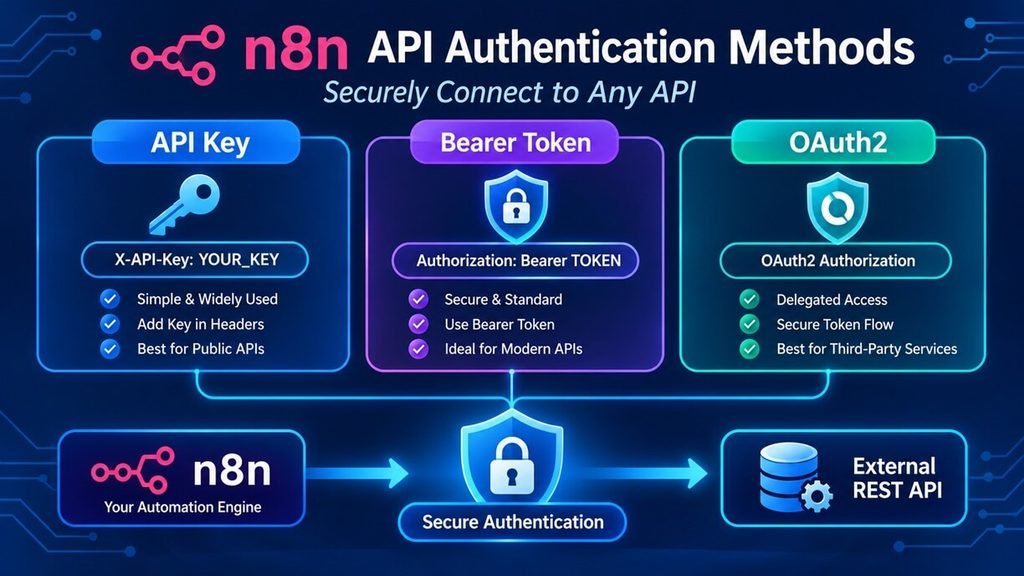
Understanding authentication makes API automation much easier.
API Key
An API provider gives you a key that identifies your application. A request might look conceptually like:
X-API-Key: YOUR_API_KEYThe exact header name depends on the API.
Bearer Token
A bearer token is commonly sent through an Authorization header:
Authorization: Bearer YOUR_TOKENThe API validates the token before processing the request.
OAuth 2.0
OAuth 2.0 is commonly used when an application needs delegated access to another service. Instead of simply giving n8n a static API key, the workflow uses an OAuth authorization process and token. The exact configuration depends on the service.
Step 4: Add Query Parameters
Many APIs accept query parameters to control what information is returned.
For example:
https://api.example.com/customers?status=activeHere:
status=activeis a query parameter.
You might use parameters for:
- Filtering
- Searching
- Sorting
- Pagination
- Date ranges
- Page size
- Record IDs
In n8n, keep dynamic values as expressions when they come from previous workflow steps.
For example:
https://api.example.com/customers/{{ $json.customerId }}This allows the workflow to use a different customer ID for each incoming item.
Step 5: Add Request Headers
Some APIs require headers such as:
Content-Type: application/jsonor:
Accept: application/jsonAuthentication may also be transmitted through a header depending on the API. Always follow the API provider’s documentation instead of assuming that every API uses the same headers.
Step 6: Send JSON Data With POST or PUT
GET requests commonly retrieve information. POST requests commonly send information to an API.
For example:
{
  "name": "John Smith",
  "email": "john@example.com",
  "company": "Example Inc"
}
The API might create a new contact using this information.
An n8n workflow could therefore look like:
Webhook
   ↓
Validate Data
   ↓
HTTP Request
   ↓
CRM API
The HTTP Request node sends the lead information to the CRM.
Step 7: Process the API Response
The API response becomes data that the next n8n node can use.
For example:
{
  "id": "crm_12345",
  "status": "created"
}
The next node could use:
{{$json.id}}to reference the returned ID.
You can then:
- Save it
- Send it to another API
- Add it to a CRM
- Store it in Google Sheets
- Send a notification
- Run an IF condition
- Pass it to an AI node
This is where API automation becomes more than simply “calling an API.”
A Complete n8n API Automation Example
Consider a B2B lead-generation workflow. A visitor submits a form. If you’re building this type of workflow, see our guide to the n8n website lead capture workflow for a dedicated implementation.
Website Form
      ↓
Webhook
      ↓
Validate Lead
      ↓
Enrichment API
      ↓
AI Qualification
      ↓
CRM API
      ↓
Slack Notification
      ↓
Email Follow-Up
Step 1 — Website form
The form collects:
Name
Email
Company
Website
Step 2 — Webhook
n8n receives the form submission.
Step 3 — Validation
Check whether:
- Email exists
- Company exists
- Required fields are present
- The lead isn’t a duplicate
Step 4 — Enrichment API
The HTTP Request node sends the company domain to an enrichment API.
The API might return:
{
  "company": "Example Inc",
  "industry": "Software",
  "employees": 75,
  "country": "United States"
}
Step 5 — Qualification
The workflow evaluates the lead.
For example:
Employees > 50
AND
Industry = Software
could classify the lead as high priority.
For a more advanced implementation, see our n8n AI lead qualification workflow.
Step 6 — CRM API
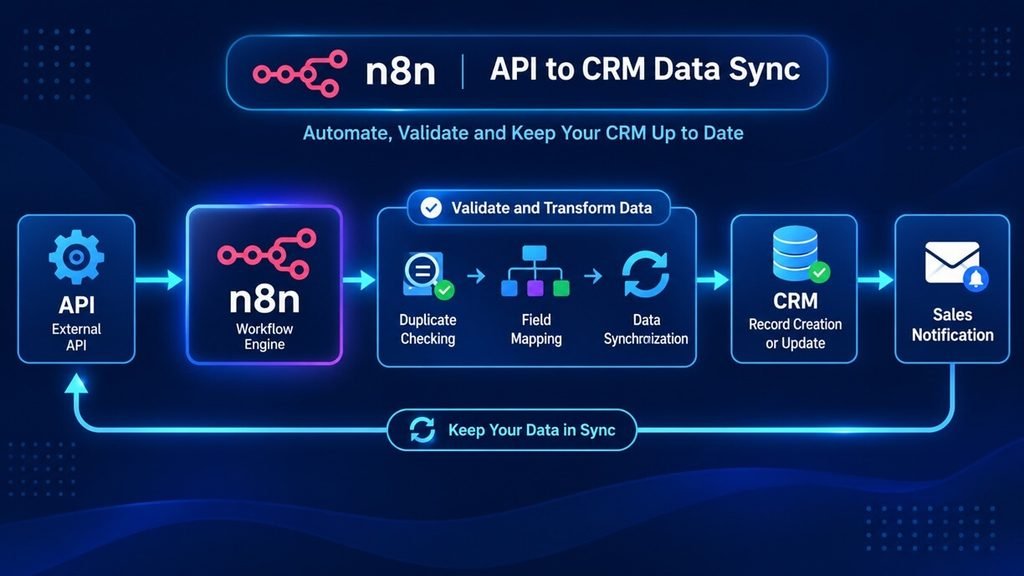
n8n sends the enriched lead to the CRM.
Step 7 — Notification
A sales team receives a Slack or email notification.
The entire process can happen automatically after the initial form submission.
How to Use API Data Dynamically in n8n
One of the biggest advantages of n8n is that API requests don’t have to contain static values. You can use data from previous nodes.
For example:
Webhook
   ↓
Extract Customer ID
   ↓
HTTP Request
The URL could contain:
https://api.example.com/customers/{{ $json.customerId }}If the incoming data contains:
{
  "customerId": "12345"
}
n8n dynamically builds:
https://api.example.com/customers/12345This allows one workflow to process hundreds or thousands of records without manually changing the request.
n8n API Pagination: How to Get All Results
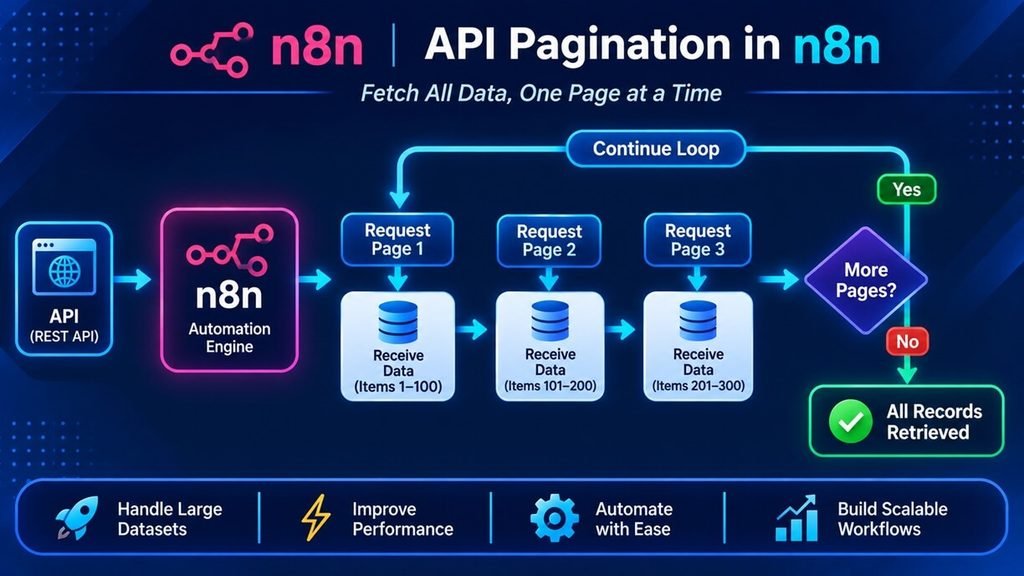
Pagination becomes important when an API doesn’t return every record in one response. For example, an API might return:
Page 1 → 100 customers
Page 2 → 100 customers
Page 3 → 100 customers
If you only request page one, your workflow won’t receive the complete dataset.
n8n’s HTTP Request node includes built-in pagination options. It can either update a parameter between requests or follow a next-page URL returned by the API.
Common pagination patterns
Page-number pagination
An API might use:
?page=1
?page=2
?page=3
n8n can update the page parameter between requests. The HTTP Request node provides $pageCount, which can be used to calculate page numbers in expressions.
For example:
{{ $pageCount + 1 }}Next-URL pagination
Some APIs return something like:
{
  "data": [...],
  "next": "https://api.example.com/customers?page=2"
}
n8n can use the next URL from the response to retrieve subsequent pages.
Cursor pagination
Some APIs return a cursor instead of a page number:
{
  "data": [...],
  "next_cursor": "abc123"
}
The next request uses that cursor.
The exact implementation depends on the API.
Important rule
Always inspect the API response before configuring pagination. Different APIs implement pagination differently, so you need to know whether the API uses:
- Page numbers
- Offsets
- Cursors
- Next URLs
- Tokens
- Limits
n8n’s documentation specifically recommends checking the API documentation or making an initial request without pagination to understand the response structure.
n8n API Rate Limits
An API may limit how many requests you can make within a specific period.
For example:
100 requests/minuteIf your workflow sends hundreds of requests too quickly, the API may return a rate-limit response. This is particularly important when processing large numbers of leads, customers, orders, or records.
n8n provides batching options for controlling how many requests are sent before a delay. You can also combine Loop Over Items with Wait when you need more explicit control over request frequency.
For example:
100 records
     ↓
Batch 10
     ↓
API Requests
     ↓
Wait
     ↓
Next Batch
The HTTP Request node’s batching option can control the number of items processed per batch and the interval between batches.
How to Handle API Errors in n8n
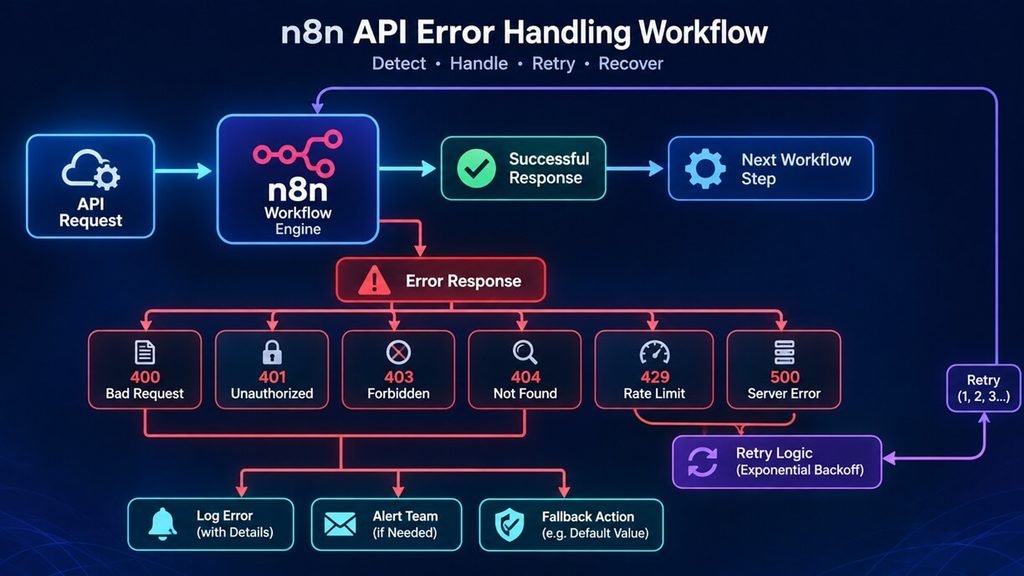
A production API workflow should assume that failures will happen.
Common API errors include:
- 400 Bad Request
- 401 Unauthorized
- 403 Forbidden
- 404 Not Found
- 409 Conflict
- 429 Too Many Requests
- 500 Internal Server Error
- 502 Bad Gateway
- 503 Service Unavailable
The correct response depends on the error.
400 Bad Request
Usually means something is wrong with the request.
Check:
- Required fields
- JSON structure
- Parameters
- Data types
- Endpoint
401 Unauthorized
Usually means the authentication isn’t valid.
Check:
- API key
- Token
- OAuth credentials
- Authorization header
- Expiration
403 Forbidden
Authentication may be valid, but the account doesn’t have permission to perform the requested operation.
Check:
- Permissions
- Scopes
- API plan
- User role
404 Not Found
Check:
- Endpoint URL
- Record ID
- API version
- Resource path
429 Too Many Requests
The API is telling you that you’re sending requests too quickly or have exceeded a usage limit.
Use:
- Batching
- Delays
- Retry logic
- Rate-limit-aware workflow design
n8n documents both batching and retry options for handling rate-limit-related failures.
Using Retry on Fail in n8n
Temporary API failures don’t always require a workflow to stop permanently. For example, an API might temporarily return a server error. n8n’s HTTP Request node provides a Retry on Fail option where you can configure the maximum number of attempts and the delay between retries.
A simple strategy could be:
API Request
     ↓
Failure?
     ↓
Retry
     ↓
Success → Continue
But don’t blindly retry every error. A 401 authentication error generally needs a credential fix rather than repeated requests. Likewise, retrying a malformed 400 request won’t solve the underlying problem.
API Automation Security Best Practices
API automation often involves sensitive information. These considerations are part of a broader AI workflow security best practices approach, especially when automated workflows handle customer data, credentials, and business systems.
Your workflow might process:
- Customer information
- Email addresses
- CRM data
- API credentials
- Payment information
- Internal business data
- Authentication tokens
Use appropriate security practices. API integrations should also follow established security practices. The OWASP API Security Top 10 highlights common vulnerabilities involving authentication, authorization, and unrestricted resource consumption.
1. Don’t expose API keys
Avoid hardcoding sensitive credentials into workflow text or public documentation.
2. Use n8n credentials
Where possible, use n8n’s credential system rather than manually inserting secrets into individual requests.
3. Give credentials minimum permissions
If an API allows scopes or roles, use the smallest permission set necessary.
4. Be careful with execution data
Think about whether sensitive API responses should be retained in workflow execution history.
5. Validate external data
Don’t automatically trust everything returned by an external API. Validate important fields before using them downstream.
6. Protect webhooks
If an API automation workflow begins with a webhook, consider authentication or validation mechanisms appropriate to the endpoint.
n8n API Automation vs Native Integrations
You don’t always need the HTTP Request node. Choosing between native integrations and custom API connections is also part of the broader decision between Zapier, Make, and n8n.
If n8n has a dedicated integration that supports the operation you need, using the native node can be simpler. However, API access becomes useful when:
- The native node doesn’t support the operation
- The service doesn’t have a dedicated node
- You need a custom endpoint
- You need a new API feature before native support exists
- You need more control over the request
n8n’s documentation also points to the HTTP Request node as an option when a built-in integration doesn’t support the operation you need.
A useful rule is:
Use the native node when it already does what you need. Use the API when you need additional control or access to an unsupported operation.
n8n API Automation Examples for Business
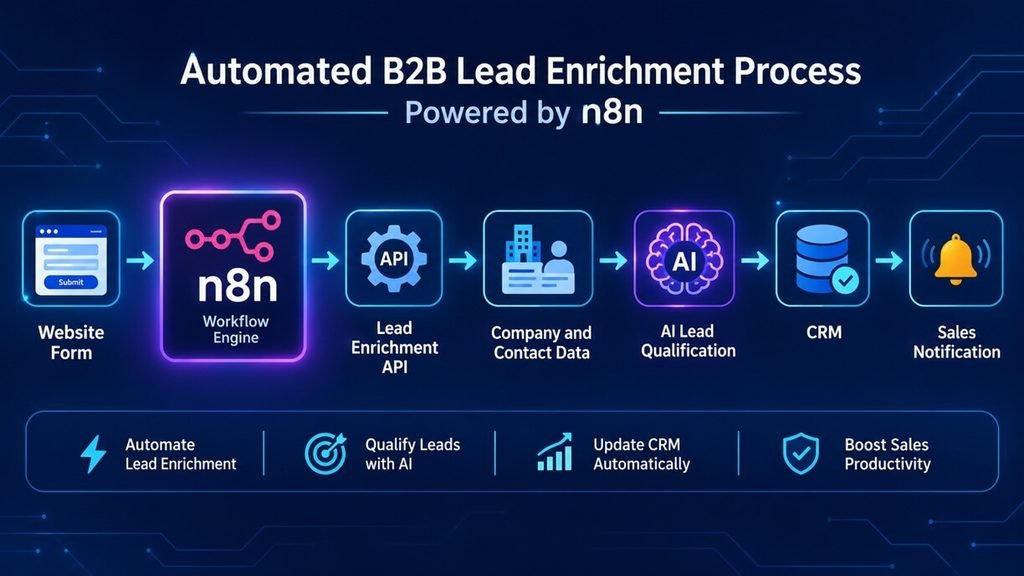
Here are some practical ways businesses can use API automation.
1. Lead Enrichment
New Lead
 ↓
Enrichment API
 ↓
Company Data
 ↓
Lead Score
 ↓
CRM
Want to build this workflow yourself? You can recreate this lead enrichment automation using n8n’s HTTP Request node. You can also explore our lead enrichment and CRM update kit for a more practical implementation.
You can recreate this lead enrichment automation using n8n’s HTTP Request node, connect your preferred enrichment API, and send qualified leads directly to your CRM. Explore n8n Cloud and start building your automation workflows.
2. CRM Synchronization
CRM
 ↓
API
 ↓
n8n
 ↓
Another CRM / Database
This can synchronize selected information between systems. For a step-by-step implementation, see our guide on how to automate CRM updates with n8n.
3. Website Lead Capture
Website Form
 ↓
Webhook
 ↓
Validation
 ↓
CRM API
 ↓
Sales Notification
4. Customer Onboarding
New Customer
 ↓
CRM API
 ↓
Create Project
 ↓
Create Tasks
 ↓
Send Welcome Email
You can also learn how to build a client onboarding workflow in n8n for automating these post-sale processes.
5. Support Automation
Support Request
 ↓
Ticket API
 ↓
AI Classification
 ↓
Priority
 ↓
Support System
6. Sales Reporting
CRM API
 ↓
Fetch Deals
 ↓
Transform Data
 ↓
Calculate Metrics
 ↓
Dashboard / Spreadsheet
7. Inventory Synchronization
Store API
 ↓
n8n
 ↓
Inventory API
 ↓
Update Stock
8. Automated Notifications
API Event
 ↓
n8n
 ↓
IF / Switch
 ↓
Slack / Email / Teams
9. AI-Powered API Automation
AI automation becomes particularly useful when API data is combined with AI agents in n8n.
For example:
New Lead
 ↓
Enrichment API
 ↓
AI Analysis
 ↓
Lead Score
 ↓
CRM API
 ↓
Sales Notification
The API supplies structured information.
The AI interprets it.
n8n orchestrates the entire process.
n8n API Automation With AI Agents
n8n’s HTTP Request node can also be used with AI agents as a tool. The official documentation notes that the HTTP Request node can be attached to an AI agent. This creates another interesting automation pattern:
User
 ↓
AI Agent
 ↓
HTTP Request Tool
 ↓
External API
 ↓
API Response
 ↓
AI Agent
 ↓
Answer / Action
For example, an internal sales assistant could retrieve information from a business API when necessary. However, API access should still be carefully controlled. An AI agent should not automatically have unrestricted access to sensitive systems.
Use appropriate credentials, permissions, validation, and human approval where the consequences of an action are significant. For a deeper look at how these systems are structured, see our AI agent workflow guide.
How to Debug n8n API Integrations
When an API workflow doesn’t work, don’t immediately rebuild the entire workflow. Work through the request systematically.
Check 1: URL
Is the endpoint correct?
https://api.example.com/v1/customersCheck the API documentation for:
- Version
- Path
- Required resource ID
- Trailing paths
Check 2: HTTP method
Make sure you’re using the required method.
For example:
GET
POST
PATCH
DELETE
A correct endpoint with the wrong method can still fail.
Check 3: Authentication
Check:
- Credential
- Token
- API key
- Header
- OAuth configuration
- Permissions
Check 4: Headers
Check whether the API requires:
Content-Type
Accept
Authorization
or custom headers.
Check 5: Request body
For POST and PUT requests, compare your JSON structure with the API documentation.
For example:
{
  "email": "customer@example.com"
}
is different from:
{
  "customer": {
    "email": "customer@example.com"
  }
}
The API may only accept one of these structures.
Check 6: Response
Don’t just check whether the HTTP request technically completed.Inspect the actual response.
Ask:
- Did the API return the expected object?
- Did it return an error?
- Is the array empty?
- Did the API return a different field name?
- Did pagination stop correctly?
If you’re still building your first n8n workflow, our n8n AI workflow automation tutorial covers the broader workflow-building process.
Common n8n API Automation Mistakes
Mistake 1: Hardcoding Everything
Static values make workflows difficult to reuse. Instead, use expressions for values that come from previous nodes.
Mistake 2: Ignoring Pagination
A workflow may appear to work because the first 100 records arrive correctly.But the remaining thousands never get processed.
Mistake 3: Ignoring Rate Limits
A workflow that works with 10 records may fail with 10,000.Design for the expected workload.
Mistake 4: Retrying Everything
Retries are useful for temporary failures, not for every error.A bad request needs correction—not repetition.
Mistake 5: Storing Credentials in Plain Text
Use n8n’s credential mechanisms whenever appropriate.
Mistake 6: Not Testing the API Separately
Before building a complex workflow, verify the basic API request.
Start with:
Trigger
 ↓
HTTP Request
Once that works, add the rest.
Mistake 7: Building Manual Pagination When Built-In Pagination Works
n8n now provides pagination functionality directly inside the HTTP Request node. For standard paginated APIs, use that functionality rather than unnecessarily creating a complicated manual loop.
Once the basic API workflow is working, you can use AI workflow templates to structure repeatable automation systems instead of rebuilding common patterns from scratch.
A Reliable Architecture for Production API Automation
For business-critical workflows, I recommend thinking beyond:
Trigger → API → DoneA more resilient architecture is:
                 ┌───────────────┐
                 │    Trigger    │
                 └───────┬───────┘
                         ↓
                 ┌───────────────┐
                 │    Validate   │
                 └───────┬───────┘
                         ↓
                 ┌───────────────┐
                 │ API Request   │
                 └───────┬───────┘
                         ↓
                 ┌───────────────┐
                 │ Validate      │
                 │ Response      │
                 └───────┬───────┘
                         ↓
                 ┌───────────────┐
                 │ Business      │
                 │ Logic         │
                 └───────┬───────┘
                         ↓
                 ┌───────────────┐
                 │ Destination   │
                 └───────────────┘

Error ─────────────→ Retry / Alert / Recovery
This architecture separates:
- Input validation
- API communication
- Response validation
- Business logic
- Destination actions
- Error handling
That makes the workflow easier to troubleshoot and maintain.
How to Design Scalable n8n API Workflows
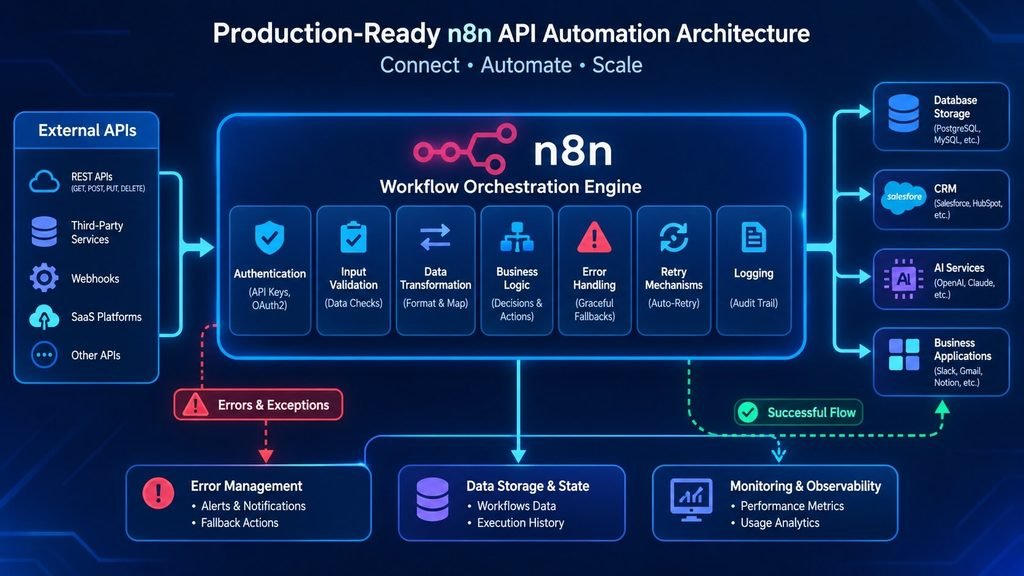
If you’re building API automation for a real business, think about scale before the workflow becomes difficult to maintain.
Start small
Test:
1 recordThen:
10 recordsThen:
100 recordsOnly after that should you assume the workflow is ready for a much larger volume.
Plan for API limits
Determine:
- Requests per minute
- Requests per day
- Maximum page size
- Maximum payload size
- Authentication expiration
- Pagination method
Separate reusable logic
If several workflows need the same API operation, consider turning that logic into a reusable sub-workflow rather than duplicating it everywhere.
For example:
Main Workflow
      ↓
Call API Sub-Workflow
      ↓
Return Standardized Data
This can make a growing automation system much easier to maintain. For larger automation environments, it’s also useful to consider AI software stress testing, security, and scalability before significantly increasing workflow volume.
n8n API Automation Checklist
Before putting an API workflow into production, check the following.
API configuration
- Correct endpoint
- Correct HTTP method
- Correct API version
- Correct parameters
- Correct request body
- Correct headers
Authentication
- Credentials configured
- Correct permissions
- Correct scopes
- No exposed API secrets
Data
- Input validated
- Response validated
- JSON structure understood
- Empty responses handled
Scale
- Pagination configured
- Rate limits considered
- Batching configured if necessary
- Large datasets tested
Once API workflows start processing larger datasets, workflow optimization becomes increasingly important for controlling execution time, complexity, and reliability.
Reliability
- Temporary failures can retry
- Permanent errors don’t retry endlessly
- Error notifications configured
- Workflow can be monitored
Security
- Sensitive credentials protected
- Webhooks secured
- API permissions minimized
- Sensitive data handled appropriately
Frequently Asked Questions
What is n8n API automation?
n8n API automation is the use of n8n workflows to communicate with external applications through APIs. The HTTP Request node is the primary tool for making REST API calls in n8n.
Can n8n connect to any API?
n8n can connect to services that expose compatible APIs, particularly REST APIs, using the HTTP Request node. The exact implementation depends on the API’s authentication, endpoint, request, response, and rate-limit requirements.
Do I need coding skills to use APIs with n8n?
You don’t necessarily need to write traditional application code. You do need to understand basic API concepts such as HTTP methods, endpoints, authentication, headers, parameters, JSON, and responses.
What is the HTTP Request node in n8n?
The HTTP Request node makes HTTP requests to external applications and services. It supports common HTTP methods, authentication options, response formats, and pagination.
Can n8n use API keys?
Yes. n8n supports API authentication through its credential system and generic authentication options. The exact configuration depends on how the API provider expects the key to be supplied.
Can n8n use OAuth2?
Yes. OAuth2 is among the authentication methods available through n8n’s HTTP Request credential options.
How does n8n handle API pagination?
The HTTP Request node has built-in pagination options. Depending on the API, n8n can update a parameter between requests or follow a next-page URL returned by the API.
How do I handle API rate limits in n8n?
Use batching, delays, and appropriate retry strategies. n8n’s HTTP Request node supports batching, while Loop Over Items and Wait can provide additional control for workflows that need explicit pacing.
What should I do if an API doesn’t have an n8n node?
Use the HTTP Request node if the service exposes an API. n8n’s own documentation recommends this approach when a dedicated node doesn’t support the operation you need.
Can n8n API automation work with AI?
Yes. API responses can be passed to AI nodes for classification, extraction, summarization, scoring, routing, and decision support. The HTTP Request node can also be connected to an AI agent as a tool.
Final Thoughts: Build Around the API, Not the App
The biggest advantage of n8n API automation is that you’re not limited to a fixed list of integrations. Instead of asking:
“Does n8n have a node for this application?”
you can ask:
“Does this application provide an API that can perform the operation I need?”
If the answer is yes, n8n can often become the automation layer connecting that system with the rest of your business.
A well-designed API workflow can:
- Collect data
- Enrich records
- Synchronize systems
- Update CRMs
- Trigger notifications
- Process orders
- Automate onboarding
- Run AI analysis
- Handle repetitive business operations
The key is to go beyond simply making an API request.
For reliable automation, design for authentication, validation, pagination, rate limits, retries, security, and error recovery from the beginning. That is what turns a basic n8n API call into a dependable business automation system.
If you’re building business workflows with n8n, the next step is to connect these API capabilities to specific use cases such as lead capture, CRM automation, lead qualification, client onboarding, and AI-powered sales workflows.
Start Building API Automations With n8n: Whether you’re connecting REST APIs, synchronizing CRM data, automating lead enrichment, or integrating AI services, n8n provides a flexible way to build interconnected business workflows. Explore n8n Cloud and start building your own API automation systems.